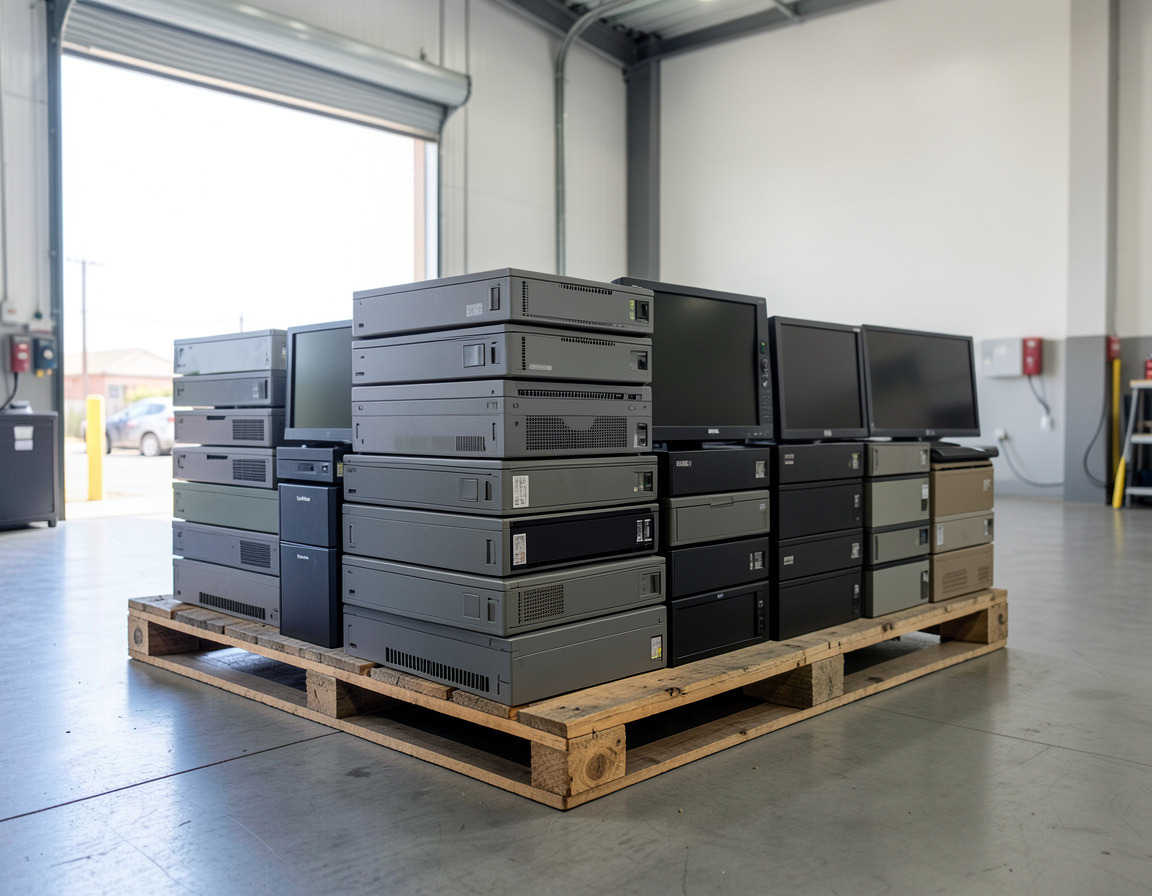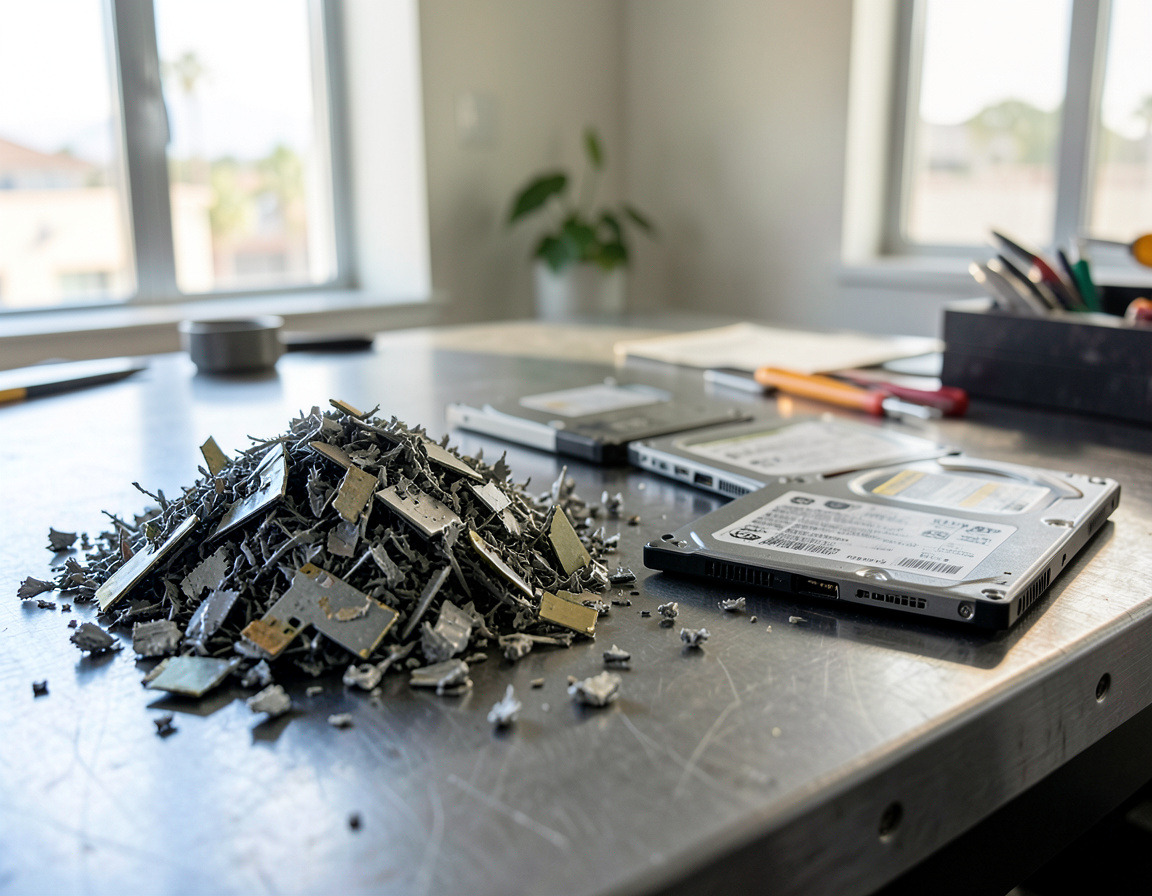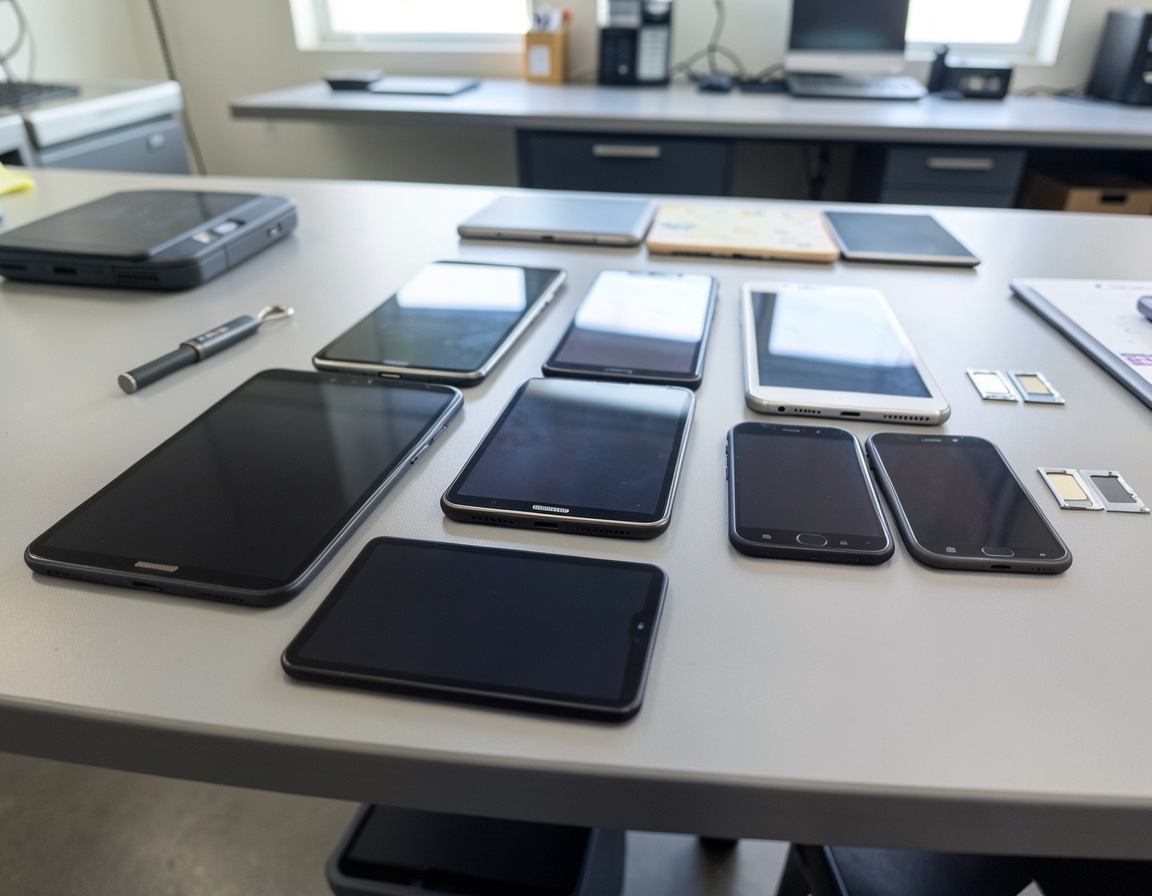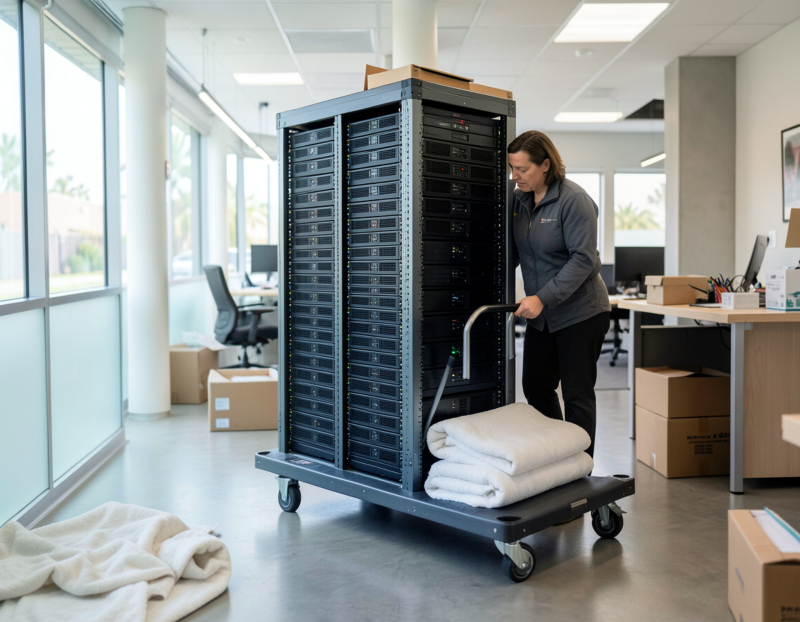



When a business replaces laptops, retires a server or returns a leased copier, the data stays on the drive until someone removes it properly. Deleting files, emptying the recycle bin and even reformatting usually leave most of the data recoverable with ordinary tools. Here is how to remove it properly, and why hard drives, SSDs and phones each need a different method.
Why "delete" and "format" are not enough
When you delete a file, the operating system marks the space it used as available. The data itself stays on the disk until something new happens to be written over it. A quick format does much the same for the whole drive: it rebuilds the file system's index and leaves the contents in place. Recovery software reads those contents directly. The "reset this PC" option in Windows can clean the drive too, but it is hard to verify and does nothing for a second drive or for drives already pulled out.
NIST SP 800-88 in plain English
The National Institute of Standards and Technology publishes Guidelines for Media Sanitization, SP 800-88. Revision 2, published in September 2025, keeps its three levels:
- Clear: logical techniques, such as overwriting every user-addressable location, that protect against simple recovery tools. Suitable for media that stays inside your organization.
- Purge: techniques that make recovery infeasible even with laboratory methods, such as the drive's built-in sanitize command or a cryptographic erase. This is the usual target for anything that will be resold or leave your control.
- Destroy: shredding, disintegrating, pulverizing or incinerating the media, so the data cannot be recovered and the media cannot be used again.
Revision 2 also shifts the focus from device-by-device instructions to a sanitization program: a written policy, a method for each type of media, verification and records. For hands-on techniques it points to external standards such as IEEE 2883.
Hard drives and SSDs need different methods
Traditional hard drives
Spinning hard drives store data magnetically in predictable places, so overwriting the entire drive and then verifying the result works well for drives in good condition. Degaussing also erases them, but it leaves the drive unusable. A drive that is failing, clicking or reporting bad sectors cannot be reliably overwritten and should be physically destroyed.
SSDs and NVMe drives
Solid-state drives spread writes across their memory to even out wear and keep spare capacity the computer cannot see. An overwrite program running in Windows can report success while old copies of data survive in those hidden areas. For SSDs, use the drive's own sanitize or secure-erase command, usually through the manufacturer's utility or the computer's firmware setup, or a cryptographic erase that destroys the drive's encryption key. Degaussing does nothing to flash memory. Shredding an SSD needs a much finer cut than a hard drive, because the memory chips are small.
Laptops with soldered storage, and Macs
Many thin laptops have storage soldered to the motherboard, so there is no drive to pull out. Business laptops often have a secure-wipe option in the firmware setup screen for this case. On Macs with Apple silicon or the Apple T2 chip, Erase All Content and Settings is Apple's intended way to prepare the machine for a new owner. Do it while the machine still works.
One habit makes all of this easier later: turn on full-disk encryption today, BitLocker on Windows and FileVault on Mac. A drive that has always been encrypted holds only unreadable data once its key is gone.
Company phones and tablets
Current iPhones, iPads and Android phones encrypt their storage by default, so a full factory reset leaves the old data unreadable. The reset is the easy part. What goes wrong is everything around it:
- Move the business data first, including authenticator apps and any messages you must keep.
- Remove Activation Lock or Factory Reset Protection by signing the device out of its Apple Account or Google account before the reset. A locked device cannot be reused by anyone.
- Release company-owned devices from Apple Business Manager, Android zero-touch enrollment or your mobile device management, so the next owner is not pulled back into your management.
- Take out the SIM card and any memory card, and delete eSIM profiles. A microSD card is not wiped by the phone's reset.
- Record the IMEI or serial number, the date and the method, then confirm the device starts at the setup screen.
Phones that will not power on, or have swollen batteries, cannot be reset and should go to physical destruction.
The devices people forget
- Copiers and multifunction printers, which often keep scanned and printed documents on an internal drive. The FTC's Copier Data Security: A Guide for Businesses advises overwriting that drive, or removing and destroying it, before the copier is returned or disposed of.
- Servers and NAS units: every drive in a RAID array holds pieces of your data, including spares.
- Camera recorders (NVR and DVR), which hold weeks of footage.
- Firewalls, routers and VoIP phones, which store VPN keys, passwords and account credentials. Reset them to factory settings.
- USB drives, memory cards and backup tapes in desk drawers.
Wipe or destroy? A quick way to decide
- Working drive that will be reused or resold: sanitize it to the Purge level and verify. It keeps its resale value.
- Failed, damaged or unverifiable drive: destroy it.
- Highly sensitive data such as patient, tax or legal files: many businesses destroy the drive even when a wipe would work.
Keep a record
For each device, record the serial number, what was done, when, by whom, and whether it was verified. If a vendor does the work, ask for a certificate of destruction listing serial numbers that match your asset list. Several rules expect this care. California Civil Code section 1798.81 requires a business to take reasonable steps so that customer records holding personal information are shredded, erased or made unreadable when they are discarded. The FTC's Disposal Rule covers consumer report information, such as background and credit checks. For medical and dental practices, the HIPAA Security Rule (45 CFR 164.310(d)(2)) requires written procedures covering how electronic health information is disposed of and how it is removed from media that will be reused.
Frequently asked questions
Does formatting a hard drive erase the data?
No. A quick format rebuilds the file system index and leaves the data where recovery tools can read it. Use a verified overwrite for hard drives, the drive's sanitize command for SSDs, or physical destruction.
Is a factory reset enough for a company phone?
On a current, encrypted phone the reset makes the old data unreadable, but it is only one step. Also remove Activation Lock or Factory Reset Protection, release the phone from device management, take out the SIM and memory card, and record the IMEI.
Does degaussing work on SSDs?
No. A degausser works by magnetism, so it only erases magnetic media like hard drives and tapes. Flash-based SSDs need a sanitize command, a cryptographic erase or physical destruction.
Should we remove hard drives before recycling computers?
Remove them or wipe them first. A recycler's job is recovering materials, and the data stays your responsibility until it is sanitized.
Have a stack of old computers, phones or drives in Los Angeles, Long Beach or the South Bay? See our hard drive shredding and data destruction service, business phone and tablet recycling with data wipe, and computer recycling and e-waste pickup. Tell us what you have and how sensitive the data is, and we will suggest a method for each device.