


In many small businesses the server lives in a closet, runs for years without anyone thinking about it, and gets attention only when it stops. It rarely fails without warning. Disks report errors, backups quietly stop, fans get louder and the operating system drifts past its support date long before the morning nobody can open the shared drive. Here are the signs that a small business server needs attention, what monitoring should watch, and how to decide whether to fix it, migrate it or retire it.
Hardware warning signs
- Disk warnings: SMART errors, reallocated or pending sectors, or a drive whose "predictive failure" light has been amber for weeks.
- A degraded RAID array. RAID keeps the server running when one disk fails, which is exactly why a failed disk can go unnoticed until a second one fails. A rebuild that takes days, or keeps restarting, is a warning of its own.
- Beeps, amber lights and fan noise. Many servers report a failed power supply, fan or disk only with a light on the front panel that nobody looks at.
- Unexpected restarts or freezes, and memory errors in the system log.
- Heat. A closet with no ventilation, a door that is always shut, or a server sharing its space with a water heater.
- UPS alarms. Battery backup units test their batteries and complain when they weaken. A UPS with a dead battery protects nothing.
- No warranty and no parts. Once the manufacturer's support ends, a failed motherboard can mean days of downtime while someone hunts for a used part.
Software and security warning signs
An operating system past its end-of-support date stops receiving security fixes, which is the most common reason a server that still works has to be replaced. Dates worth checking against your own equipment, taken from Microsoft's and the Linux distributions' published lifecycles:
- Windows Server 2012 and 2012 R2: support ended October 10, 2023.
- Windows Server 2016: extended support ends January 12, 2027. Microsoft sells Extended Security Updates, delivered through Azure Arc, for servers that cannot move in time.
- Windows Server 2019: extended support ends January 9, 2029.
- Exchange Server 2016 and 2019: support ended October 14, 2025.
- SQL Server 2016: extended support ended July 14, 2026.
- CentOS 7 reached end of life on June 30, 2024, and long-term support for Debian 11 ended on August 31, 2026.
Other signs: updates that fail or have been postponed for months, a disk that is always nearly full, certificates that expire by surprise, one administrator password shared by everyone, and the most dangerous of all, nobody being sure what the server still does.
Backup warning signs
- The backup reports "success" every night, but nobody has restored a file from it in months.
- The only backup is a USB drive plugged into the server itself, within reach of ransomware or a power surge.
- Backups cover the shared folders but not the database, the mailboxes or the application settings.
- No copy ever leaves the building.
CISA's #StopRansomware Guide recommends keeping offline, encrypted backups of critical data and regularly testing that they can be restored. A test restore of a few real files every month, and of the whole server at least once a year, is the only proof that a backup works.
How monitoring catches problems early
Nearly every sign above can be detected automatically. Basic monitoring for a small business server watches disk health and RAID status, remaining disk space, backup results, temperatures, UPS status, pending updates, certificate expiry dates and whether key services respond. What matters is that alerts reach a person who acts on them, and that someone reviews the trends each month. A disk that fills a little more every week is a planning item, not an emergency, as long as someone sees it coming.
Fix, migrate or retire?
Fix it and keep it
If the hardware is under warranty, the operating system has years of support left and the problem is isolated, such as one failed disk or a broken backup job, repair it, test the backup and add monitoring so the next problem shows up early.
Migrate to new hardware, a virtual machine or the cloud
If the operating system is close to end of support or the hardware is out of warranty, plan a migration instead of waiting for a failure. The options include a new physical server; virtualization with Proxmox, VMware or Hyper-V, so the next hardware change becomes a copy instead of a rebuild; moving file shares to Microsoft 365 or Google Workspace; or switching a line-of-business application to the vendor's hosted version. The right choice depends on your internet connection, your software licensing and how much control you need over the data.
Retire it
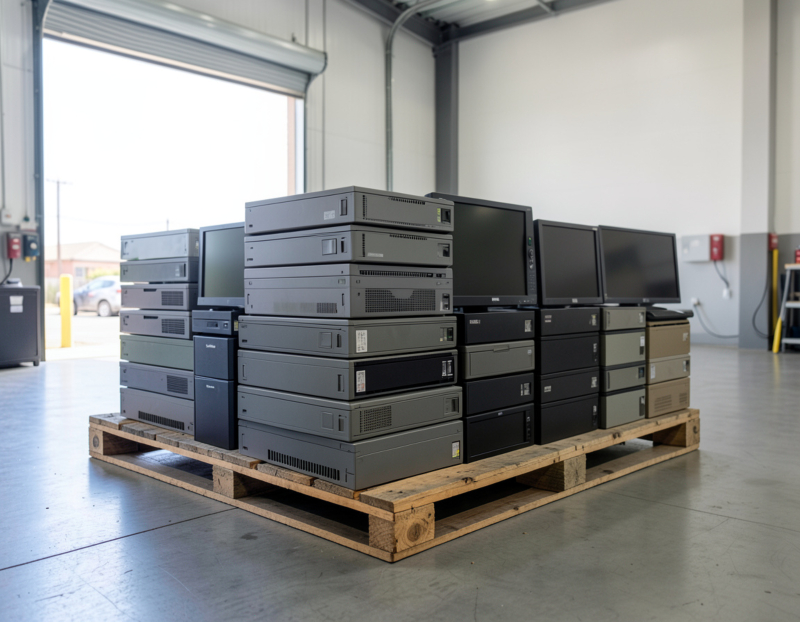
Once every job has moved, the old server still needs a controlled shutdown. Map its remaining dependencies, such as DNS, DHCP, scheduled tasks, scan-to-folder shares and license services. Take a final verified backup, and demote a domain controller properly instead of just unplugging it. Leave the machine powered off for a while before removing it, so anything still relying on it surfaces while the server can simply be switched back on. Then sanitize every drive, including RAID members and spares, and recycle the hardware through an authorized e-waste handler.
A ten-question server self-check
- Do you know how old the server is and when its warranty ends?
- Is its operating system supported for at least another year?
- When did someone last restore a file from backup?
- Is at least one backup copy offline or off-site?
- Would anyone be alerted if a disk failed tonight?
- Are security updates installed on a schedule?
- Is the server on a UPS with a healthy battery?
- Is the room cool and ventilated?
- Is there a written list of everything the server does?
- Could someone other than you log in and restart it?
Every "no" or "not sure" is an item for your to-do list. Several of them together mean it is time to plan, before the server makes the decision for you.
Frequently asked questions
How often should server hardware be replaced?
There is no fixed rule. Many businesses plan around the hardware warranty and the operating system's support dates, whichever ends first. A server that is out of warranty and within a year of its operating system's end of support should already have a replacement plan.
What happens when Windows Server 2016 reaches end of support?
After January 12, 2027, Microsoft stops releasing security updates for it, except to customers who buy Extended Security Updates through Azure Arc. The server keeps running, but every newly found vulnerability stays open.
Should a small business replace its server with the cloud?
Often partly. File sharing and email usually move well to Microsoft 365 or Google Workspace, while some accounting, imaging or industrial software still needs a local machine. A mix of cloud services and one small, virtualized local server is a common result.
What should happen to an old server once it is replaced?
Decommission it on purpose: confirm nothing depends on it, keep an archive backup for as long as your record-keeping rules require, remove it from the domain, monitoring and DNS, then wipe or destroy every drive and recycle the hardware legally.
If the server in your Long Beach, San Pedro or Los Angeles office shows any of these signs, start with server monitoring and maintenance and backup and disaster recovery. When it is time to move, see server virtualization and migration, and for the old hardware, server decommissioning. Tell us what your server runs and how old it is, and we will suggest the next step.