

A new drive, a sluggish laptop or a machine that no longer boots often leads to the same question: should you reinstall the operating system from scratch or upgrade what is already there? The answer affects how long the job takes, how stable the computer will be afterwards and how much of your data comes through intact. This guide walks through the decisions behind a successful operating system installation, whether the target is Windows, macOS or Linux, so you know what to prepare before anyone touches the installer.
Clean Install vs In-Place Upgrade
An in-place upgrade installs a newer version over the existing system and keeps your apps, settings and files where they are. It suits a healthy system that simply needs the next release.
A clean install wipes the system partition and starts fresh. It removes years of leftover software, broken drivers, startup clutter and, in many cases, malware that an upgrade would carry forward. A clean install makes more sense when:
- The computer is slow or unstable even after basic cleanup.
- You are moving to a new SSD or replacing a failed drive.
- The machine is changing owners or being repurposed for a different user.
- An upgrade has already failed or rolled back.
The trade-off is time: after a clean install every application has to be reinstalled and every account signed back in, so planning matters.
Back Up First, Then Verify the Backup
No OS setup should begin without a current backup. Copy documents, desktop files, photos, browser bookmarks, email archives and any application data that lives outside the usual folders. Accounting software, design tools and local databases often store files in hidden locations, so check each program before you assume it is covered.
A backup is only useful if it can be restored. Open a handful of files from the backup drive or cloud copy on another computer before you erase anything.
Drivers and Firmware
The device drivers are small pieces of software that let the operating system talk to the chipset, storage controller, graphics card, network adapter and audio hardware. Modern installers include many generic drivers, but they are not always the best ones for your model.
- Download the network driver for your exact model before starting, so you can get online if the installer does not recognize the adapter.
- Check the manufacturer's support page for chipset, storage and graphics drivers after the install.
- Update the BIOS or UEFI firmware only when there is a known fix you need, and never during a power outage risk.
- Confirm the firmware settings (UEFI mode, Secure Boot, TPM) match what the new system expects.
Activation and Licensing Basics
Reinstalling does not automatically mean buying a new license. Most Windows computers are tied to a digital license linked to the hardware or to a Microsoft account, and they reactivate on their own once online. Major hardware changes, such as a new motherboard, can break that link.
macOS is licensed with Apple hardware, and reinstalling through macOS Recovery restores the version supported by that Mac. Most Linux distributions are free to install, though some business editions use paid subscriptions for support and updates. Remember that applications have licenses too: Microsoft Office, Adobe products and specialist software may need to be deactivated on the old system before you wipe it.
Windows, macOS and Linux: Key Differences
Windows installation
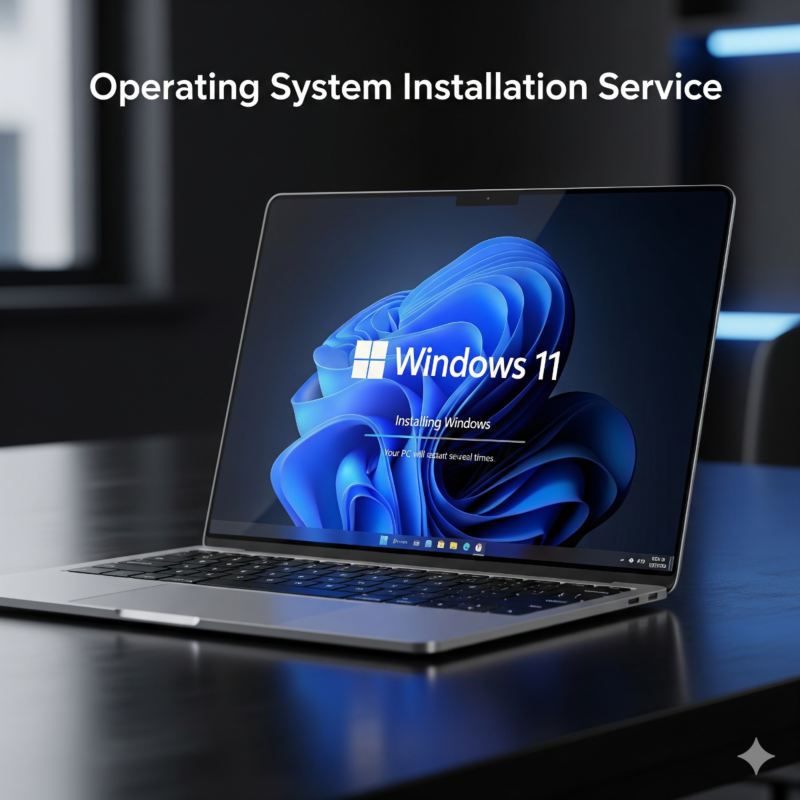
A Windows installation usually starts from a USB installer created with Microsoft's media tool. Current versions require TPM 2.0, Secure Boot capability and a supported processor, so older PCs may not qualify. Plan time for Windows Update, which can take several restarts before the system is fully current.
macOS installation
A macOS installation is typically done from macOS Recovery or a bootable installer. Apple silicon Macs and Intel Macs use different recovery steps, and Find My and Activation Lock must be handled with the owner's Apple ID before erasing. Migration Assistant can move accounts and files from a Time Machine backup or another Mac.
Linux setup
Linux setup offers the most choice: Ubuntu, Debian, Fedora and others each have their own installer, desktop and update cycle. Consider partitioning, disk encryption, dual boot with Windows and whether your printers, scanners and business software have Linux support before committing.
Data Migration After the Install
Good data migration makes a fresh system feel like your own computer again. Restore files into the standard folders, reinstall applications from trusted sources, sign back into cloud storage and email, then reconnect printers and network drives.
Keep the old drive or backup untouched for a few weeks. It is common to discover a missing template, font or saved password only after daily work resumes.
When to Get Professional Help
Many people handle a single home computer setup on their own. Help is worth considering when several office machines need the same configuration, when business data or client records are involved, when the computer will not boot at all, or when licensing and encryption make a mistake expensive.
If you are in Long Beach, Los Angeles, the South Bay or elsewhere in LA County, you can read more about our operating system installation service in Los Angeles, which covers Windows, macOS and Linux systems for homes and businesses.
OS Installation FAQ
Will a clean install delete my files?
Yes. A clean install erases the system drive, which is why a verified backup is the first step. An in-place upgrade is designed to keep files, but a backup is still recommended.
Do I need a new license to reinstall Windows?
Usually not. If the computer had an activated copy, reinstalling the same edition on the same hardware normally reactivates automatically once it connects to the internet.
Can I switch from Windows to Linux?
Yes, and you can also keep both with dual boot. Check that your key applications and hardware work on Linux first, and back up everything before changing partitions.


