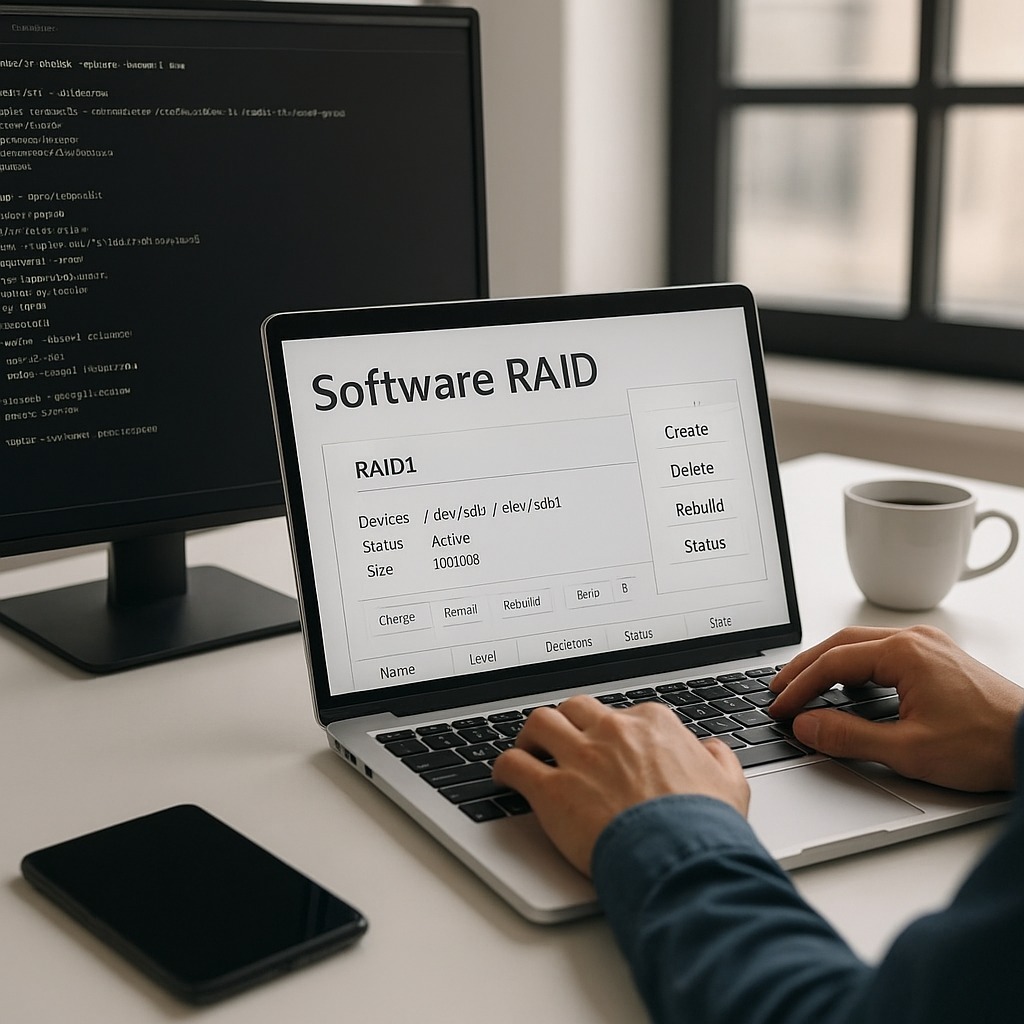



The alert usually has a dull subject line: a DegradedArray event on /dev/md0. One disk in a Linux software RAID has dropped out, the server still runs, and it is tempting to leave it until next week. Don't. A degraded RAID array has no redundancy left for the data on it, and the remaining disks are often the same age and model as the one that just failed. This guide shows how to replace a failed disk in mdadm calmly, on a typical RAID 1, 5, 6 or 10 array, without turning a disk failure into data loss.
Step 1: check RAID status in Linux before touching anything
Start by reading what the system reports. The file /proc/mdstat gives a short summary per array; a healthy two-disk mirror shows [UU] and a degraded one [U_]. For detail, mdadm --detail /dev/md0 lists each member device with its state (active, faulty, removed or spare) and shows whether a resync or recovery is running. Note which partitions belong to which array, because many servers have separate arrays for /boot, swap and data on the same disks.
Next, confirm the backups. A rebuild reads every block on the surviving disks, which is exactly the moment a second weak disk tends to fail. If the latest backup is old or untested, copy the important data somewhere safe first.
Step 2: identify the failed disk by serial number
Device names such as /dev/sdb can change between reboots, and pulling the wrong disk from a degraded mirror ends the story badly. Always identify the failed disk by serial number. The links under /dev/disk/by-id include the model and serial, and smartctl -i /dev/sdb from smartmontools prints the serial as well. Write it down, then match it against the label on the physical disk or the bay information from your hosting provider.
While smartctl is open, check the surviving disks with smartctl -a. Reallocated or pending sectors on a survivor change the plan: copy the data off before the rebuild rather than trusting the rebuild to finish.
Step 3: remove the failed member
If mdadm has already marked the disk faulty, remove it from the array. If the disk is failing but still active, mark it faulty first. For each array that uses the disk:
- mdadm /dev/md0 --fail /dev/sdb1, only if it is not already marked faulty
- mdadm /dev/md0 --remove /dev/sdb1
Repeat this for every partition of that disk in other arrays, such as /dev/md1. The disk can then be replaced: hot-swapped if the hardware supports it, or after a planned shutdown. On rented servers, open a ticket with the serial number and ask the provider to replace exactly that disk.
Better still: swap a failing disk with mdadm --replace
If a disk is only showing warnings, you can avoid the degraded window altogether. Add the new disk to the array as a spare, then run mdadm /dev/md0 --replace /dev/sdb1 --with /dev/sdc1. mdadm copies the data onto the new disk while the old one stays in the array, and only then marks the old one faulty. Redundancy is kept the whole time, which makes mdadm --replace the preferred route whenever the server has room for one more disk.
Step 4: replace a failed disk in mdadm and start the rebuild
The replacement must be at least as large as the disk it replaces. Copy the partition layout from a healthy member instead of creating it by hand:
- GPT disks: sgdisk --replicate=/dev/sdb /dev/sda copies the partition table from sda onto the new sdb, and sgdisk --randomize-guids /dev/sdb then gives the new disk its own identifiers.
- Older MBR disks: sfdisk -d /dev/sda | sfdisk /dev/sdb does the same job.
Double-check the direction of the copy before pressing Enter, because reversing the two devices overwrites the good disk's partition table. Then add each new partition to its array with mdadm /dev/md0 --add /dev/sdb1, and the mdadm rebuild starts on its own.
Step 5: watch the rebuild and fix the boot loader
cat /proc/mdstat shows the recovery progress and an estimated finish time. RAID rebuild time depends mostly on disk size and on how busy the server is, because the kernel throttles the rebuild to leave room for normal work; the limits live in /proc/sys/dev/raid/speed_limit_min and speed_limit_max. On large disks a rebuild can run for many hours, so postpone heavy jobs such as full backups if you can.
If the server boots from the array, the new disk also needs a boot loader. Otherwise the server will not start the next time the other disk is the one that dies. On BIOS systems that means running grub-install on the new disk; on UEFI systems, recreate the EFI system partition on the new disk, copy its contents and add a firmware boot entry. Finally, check that monitoring still watches the array and that alert emails reach a real person.
Common mistakes in software RAID management
- Re-creating the array with mdadm --create to "fix" it. On an array that holds data this can destroy it; assembling the array from its existing members is almost always the correct command.
- Pulling the wrong disk because device names were trusted instead of serial numbers.
- Forgetting the other arrays on the same disk, which leaves swap or /boot degraded.
- No hot spare and no alerts, so the first failure goes unnoticed until a second one. A hot spare lets mdadm start rebuilding the moment a member fails.
Most of these trace back to the original Linux RAID configuration. Alerts, a boot loader on every disk and a written note of the layout, all part of a careful mdadm RAID setup, turn a disk replacement into routine maintenance.
Frequently asked questions: replace a failed disk in mdadm
Can I keep using the server while the array rebuilds?
Yes. The array stays online throughout, only slower. The risk is on the data side: until the rebuild finishes, a failure of another member can take the array down, which is why a current backup comes first.
The rebuild keeps restarting or stops with read errors. What now?
A read error on a surviving disk means the source of the rebuild is failing too. Stop writing to the array, copy the data off or image the disks, and plan the recovery from there instead of forcing the rebuild.
Does the new disk have to be the same model?
No, but it must be at least as large. Mixing very different drive types in one array can hold the whole array back to the speed of its slowest member.
Dealing with a degraded array on a server in Los Angeles or elsewhere in California? Our software RAID creation and management service covers disk replacements, rebuilds and recovery, and most of the work is done remotely once the replacement disk has been fitted by you or your hosting provider. If a rebuild shows that the backups need attention too, see our data backup and disaster recovery service. Contact us with the output of mdadm --detail for each array and we will look at the next safe step with you.