


When an office PC takes several minutes to start and freezes whenever someone opens a large spreadsheet, the first instinct is to replace it. Sometimes that is the right call. But many business machines are held back by a single component, usually an old hard drive or too little memory, and a targeted upgrade can make them feel new for a fraction of the effort of setting up a replacement. This guide explains how to tell the difference and when an SSD upgrade for business computers is the smarter move.
Signs the Hard Drive Is the Bottleneck
Traditional spinning hard drives (HDDs) are the most common cause of a sluggish office PC. Look for these symptoms:
- Startup and login take several minutes, and the PC is unusable for a while after reaching the desktop.
- Opening programs is slow even when only one or two are running.
- In Task Manager, the Disk column sits at or near 100% while CPU and memory are low.
- You can hear the drive working constantly, or the PC is several years old and has never had a drive change.
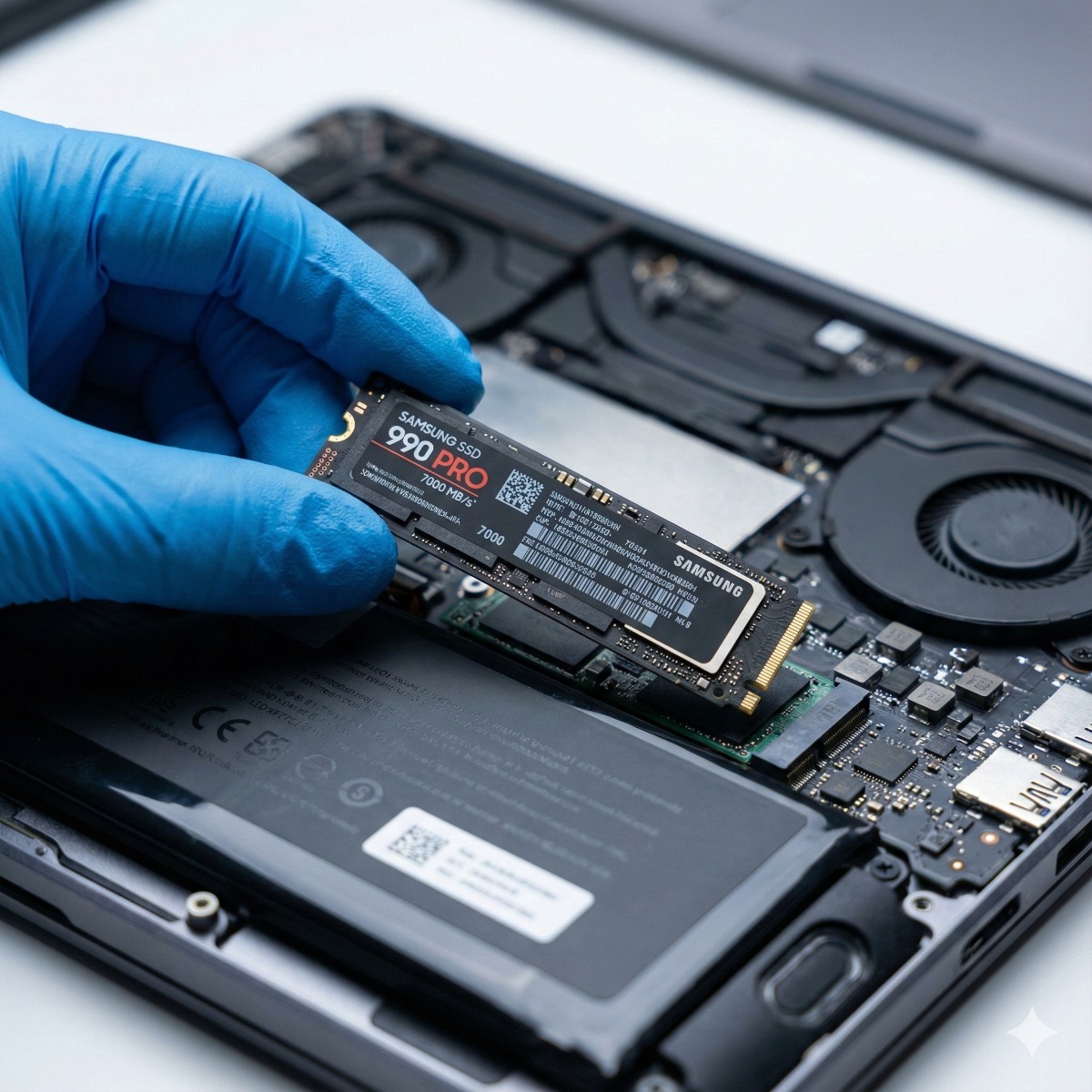
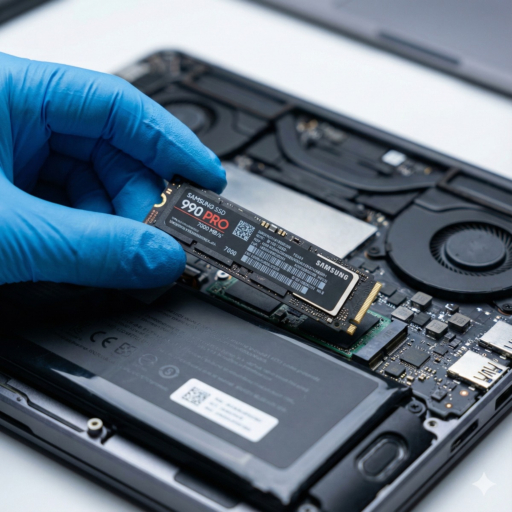
If this matches, replacing the HDD with a solid-state drive (SSD) is usually the single biggest improvement you can make. It also applies to laptops: a laptop SSD upgrade often transforms an older model that otherwise has a perfectly good screen, keyboard and battery.
Signs You Need More RAM
Memory shortages look different. The PC starts reasonably quickly, but slows down as the day goes on and more windows are opened. In Task Manager, the Memory column is consistently high, often above 85-90%, when staff have their normal browser tabs, email, Teams or Zoom, and business applications open. Modern browsers and video calls use far more memory than they did a few years ago, so a RAM upgrade for office PC users who multitask can remove those afternoon slowdowns.
Check before you buy parts
Not every PC can take more memory. Some laptops have memory soldered to the motherboard, some desktops have limited slots, and each model supports specific memory types and maximums. Look up the exact model number, or have a technician check, before ordering anything.
Which Machines Are Worth Upgrading?
Deciding whether to upgrade SSD or buy new computer usually comes down to four questions:
- Does it support Windows 11? Since Windows 10 support has ended, a machine that cannot officially run Windows 11 is usually a poor candidate for upgrades, however fast an SSD makes it.
- How capable is the processor? If the CPU is maxed out during normal work, storage and memory upgrades will help only partly.
- What condition is the rest of it in? Worn keyboards, weak batteries, failing fans or cracked hinges add up.
- How long do you need it? An upgrade that buys two or three more useful years for a reception or shop-floor PC can be excellent value; for a designer's main workstation, new hardware may pay off faster.
Cloning vs Clean Install
There are two ways to move to a new SSD:
- Cloning copies the old drive, including Windows, programs and settings, to the SSD. The user gets their PC back exactly as it was, just faster. It works well when the existing installation is healthy.
- A clean install puts a fresh copy of Windows on the SSD, then reinstalls applications and restores data. It takes longer, but clears out years of leftover software and problems. It is the better choice if the PC was unstable, infected or cluttered.
Either way, confirm the new drive is set up correctly: the right partition style, drivers, BitLocker or encryption re-enabled, and Windows activation intact.
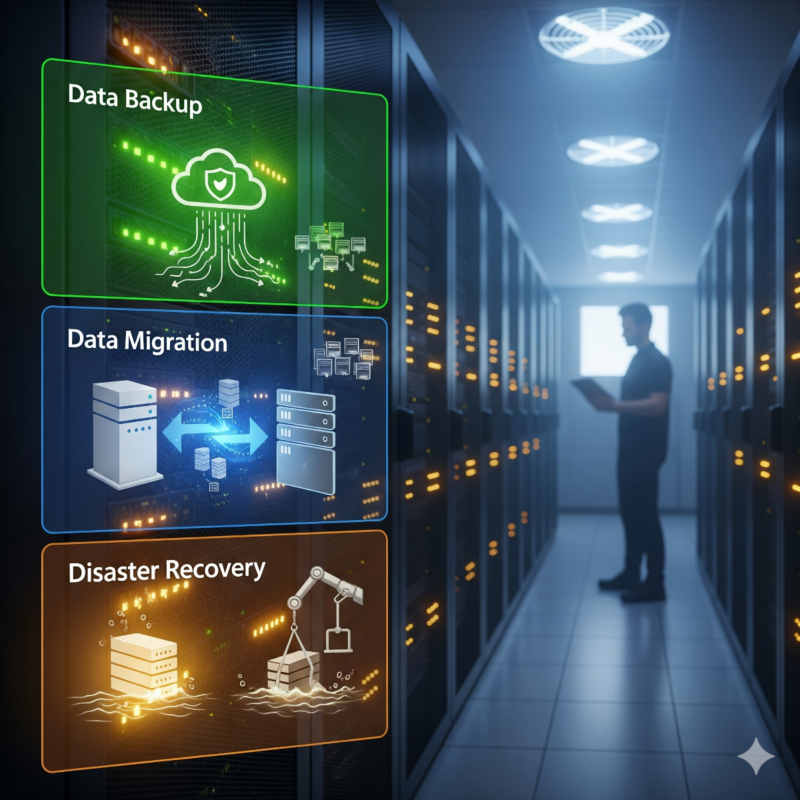
Keep Data Safe During the Swap
Any hardware work is a moment of risk. Before the upgrade:
- Make sure a current backup of the PC exists, separate from the drive being replaced.
- Note which files live only on that machine: the desktop, Downloads folder, local email archives and application databases.
- Record license keys and installers for any software that is tied to the device.
- Decide what happens to the old drive. It still contains business data, so wipe it securely or keep it locked away rather than tossing it in a drawer.
When Replacement Is the Better Call
Buy new when the PC cannot run Windows 11, when the processor is the real bottleneck, when repairs are piling up, or when the machine is so old that parts are hard to find. It is also worth replacing if you are standardizing on a fleet of identical machines, which makes support and security simpler. A refresh plan that mixes targeted upgrades for newer machines and replacement for the oldest ones is often the most efficient path.
What a Local Upgrade Visit Includes
A good computer upgrade service Long Beach offices can use should start with a quick diagnosis of each machine rather than selling the same parts to everyone. A typical visit covers checking model compatibility, backing up data, installing the SSD or memory, cloning or reinstalling, running updates and verifying that everything works before the user logs back in. Our team handles computer hardware upgrades with SSD and RAM installation for offices across Long Beach, Los Angeles and the South Bay, alongside general computer repair Long Beach businesses call us for.
The short version: if an office machine is reasonably recent, supports Windows 11 and suffers from a slow disk or full memory, an SSD upgrade for business computers is often the quickest way to get staff productive again.
PC Upgrade FAQ
Will an SSD make an old laptop fast?
It will make startup, program launches and file access much quicker. It will not fix a processor that is too weak for current software, or other failing parts.
Can we reuse the old hard drive?
It can serve as extra storage in some desktops, but it should not be the only copy of anything. If it leaves the office, wipe it securely first.
Do we need to reinstall all our software after an upgrade?
Not if the drive is cloned. A clean install requires reinstalling applications, which is why it is worth listing software and license keys beforehand.