Stolen and reused passwords are one of the most common ways attackers get into small-business email, accounting and cloud storage. The two simplest defences are multi-factor authentication and a password manager, and together they cost far less than recovering from one hijacked mailbox. This guide explains how to roll them out in a small office without turning the day into a support queue.
Why Passwords Alone Are Not Enough
People reuse passwords, choose predictable ones and type them into convincing fake pages. When a password from one leaked site works on your Microsoft 365 or Google Workspace account, the attacker simply signs in. Multi-factor authentication for small business adds a second proof, such as a code from an authenticator app or a tap on a security key, so that the password by itself no longer opens the door. It will not stop every attack, but it blocks a large share of the routine ones.
Step 1: List the Accounts That Matter Most
Do not begin with every website. Start with the accounts whose compromise would hurt the most, in roughly this order:
- Email, because it resets almost every other password.
- Microsoft 365, Google Workspace and other file storage.
- Banking, payroll and accounting software.
- Domain registrar, DNS and website hosting or store admin panels.
- Remote access: VPN, remote desktop and administrator accounts on servers and routers.
- Social media and advertising accounts used for the business.
Administrator accounts come first within each group, because they can change settings for everyone else.
Step 2: Choose the Second Factor
Not all second factors are equal. In order of practical strength:
- Passkeys and hardware security keys resist fake sign-in pages best, because they only work on the real site. They are the strongest option for administrators and finance staff where the service supports them.
- An authenticator app generates short-lived codes on the phone. This is the sensible default for most staff: free, quick and far better than no second factor.
- Push approvals are convenient but can be abused by repeated prompts until a tired user taps accept. Where possible, use number matching and teach staff to deny prompts they did not trigger.
- Text-message codes are better than nothing, but they can be intercepted or redirected through a SIM swap. Use them only when nothing else is offered.
Check each service's own documentation for the options it supports, because they change over time.
Step 3: Put a Password Manager Behind Everyone
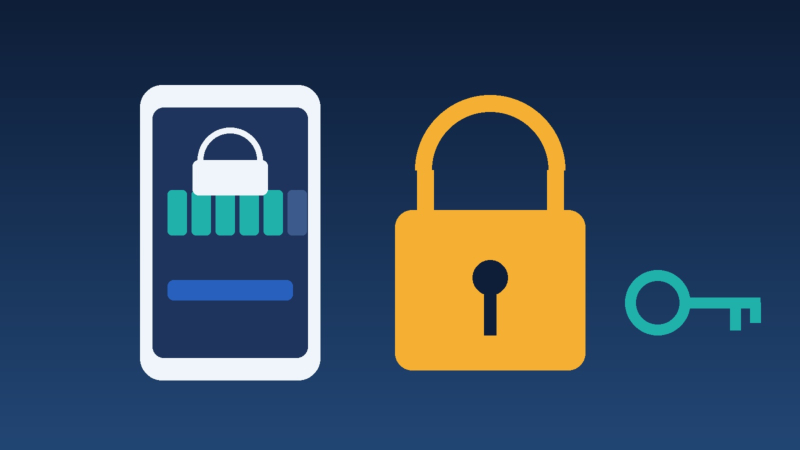
A password manager for business stores a unique, long password for each account and fills it in only on the correct address. Staff remember one strong passphrase instead of dozens of weak ones. Business plans add what a personal vault lacks: shared folders for team logins, an administrator who can see which accounts are covered, and a way to remove a leaver's access.
That last point is the real gain. Many offices still keep shared passwords in a spreadsheet, a sticky note or an old email thread. A shared vault replaces all of them, and when an employee leaves you change the few passwords they could see instead of guessing which ones those were.
Step 4: Plan for Lockouts and Recovery
Most complaints about multi-factor authentication come from the day someone loses or replaces a phone. Avoid them with a small amount of planning:
- Save the account recovery codes that many services offer, and store them in the password manager or in a sealed envelope in the office safe.
- Register a second method, such as a spare security key or a second device, for administrators.
- Write down who may approve a reset and how identity is checked, so that an attacker cannot talk their way past the process by phoning in.
- When staff change phones, move the authenticator before wiping the old one.
Step 5: Roll Out in Stages
A two-factor authentication rollout goes smoothly when it is announced and done in small groups:
- Start with owners and administrators, who will also become the people who help others.
- Give staff a one-page how-to with screenshots for your own accounts and a date by which they must enrol.
- Set aside a short time for help in person or by phone on enrolment day.
- After the deadline, enforce the requirement in the admin console so it is no longer optional, and review which accounts still lack it.
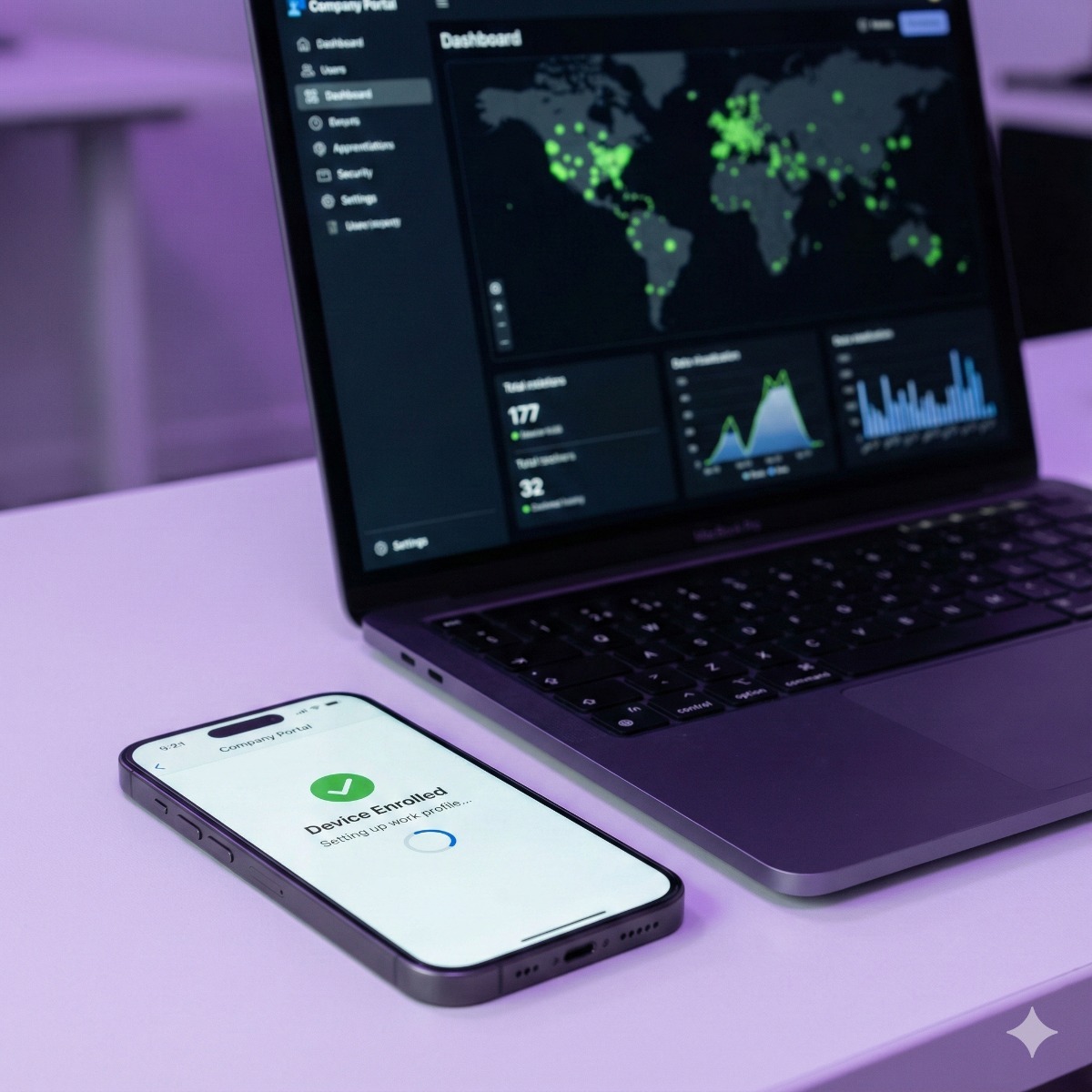
Phones used for authentication are also company-relevant devices. If staff use personal phones for work, decide what is allowed, and consider our mobile device management setup for devices that hold company email and files.
Next Steps Beyond MFA
These measures work best as part of a baseline: updated software, tested backups, filtered email and people who know what a suspicious message looks like. Our article on a practical cybersecurity baseline for small business puts them in order, and the phishing email checklist covers the human side. For firewalls, secure remote access and hardening in Los Angeles and Long Beach, see our network setup, VPN and security service.
Frequently Asked Questions: MFA and Password Managers
Is a password manager safe to use?
A reputable manager encrypts the vault with a master passphrase that the provider does not know. The real risk is a weak master passphrase or a phished account, so protect the vault itself with multi-factor authentication.
Are passkeys replacing passwords?
Passkeys are a newer sign-in method built on cryptographic keys instead of typed secrets. Many large services now support them, but plenty of business tools still rely on passwords, so for now most offices use both.
What if an employee loses their phone?
If recovery codes or a second method were set up, the user regains access without help. Otherwise an administrator verifies the person and resets the factor. Having that procedure written down is the difference between a short delay and a lost day.
Do we need MFA for every account?
Aim for every account that offers it, starting with email, finance and administrator logins. Low-value accounts can wait until the important ones are covered.
If you want help choosing and deploying these tools in an office, contact us with the number of users and the services you use.