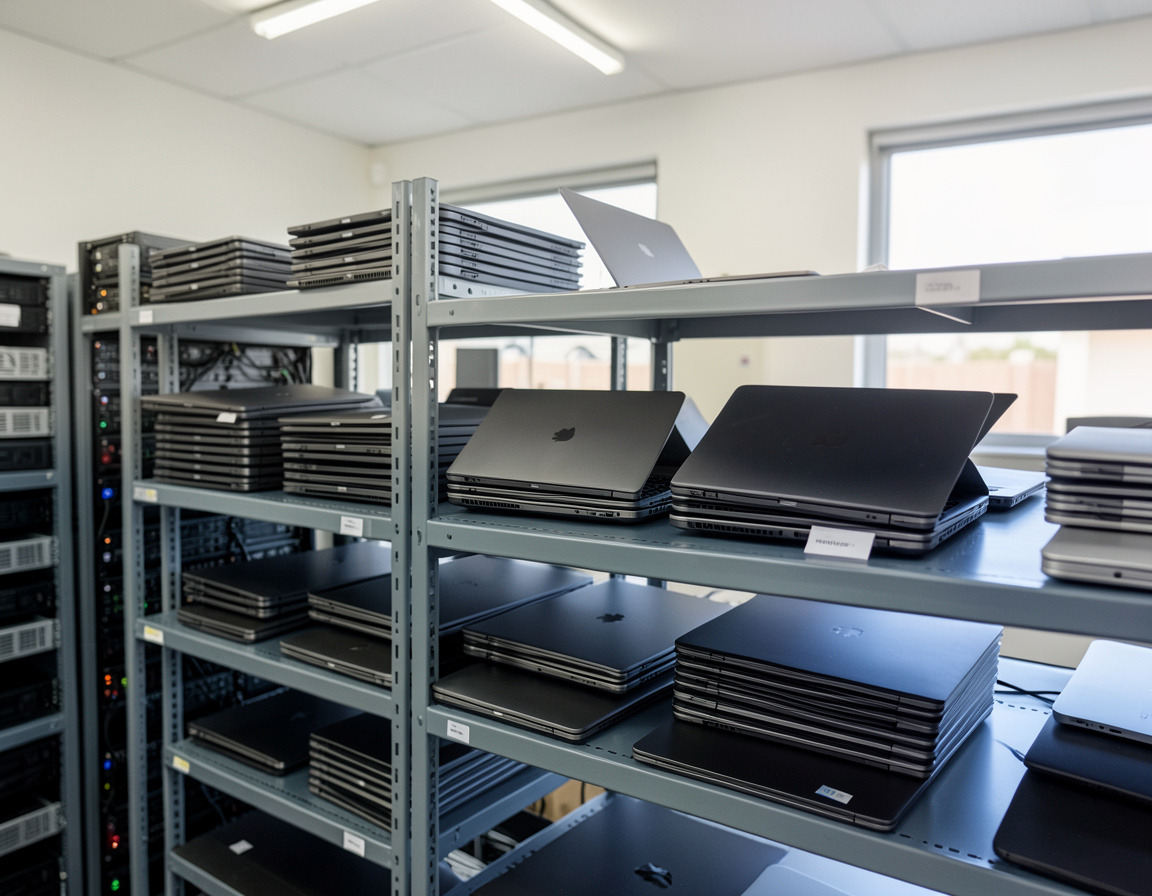
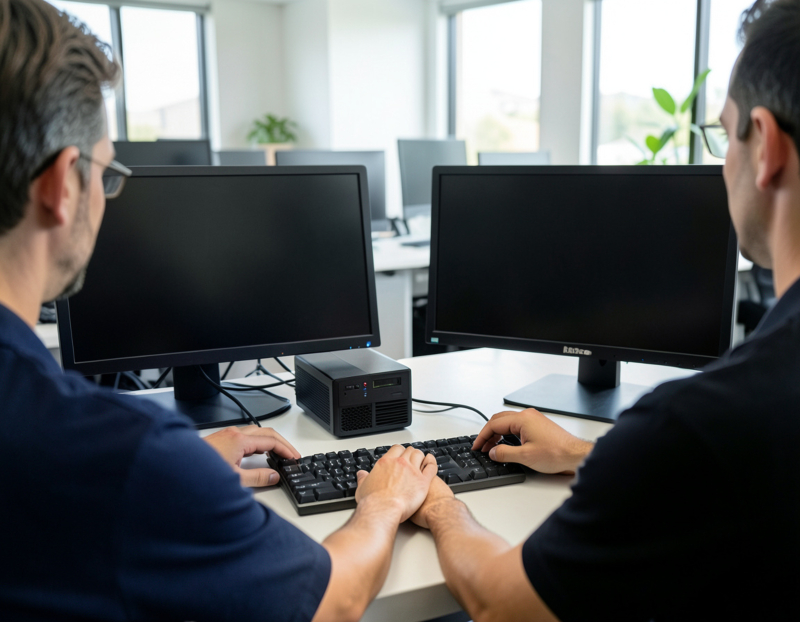
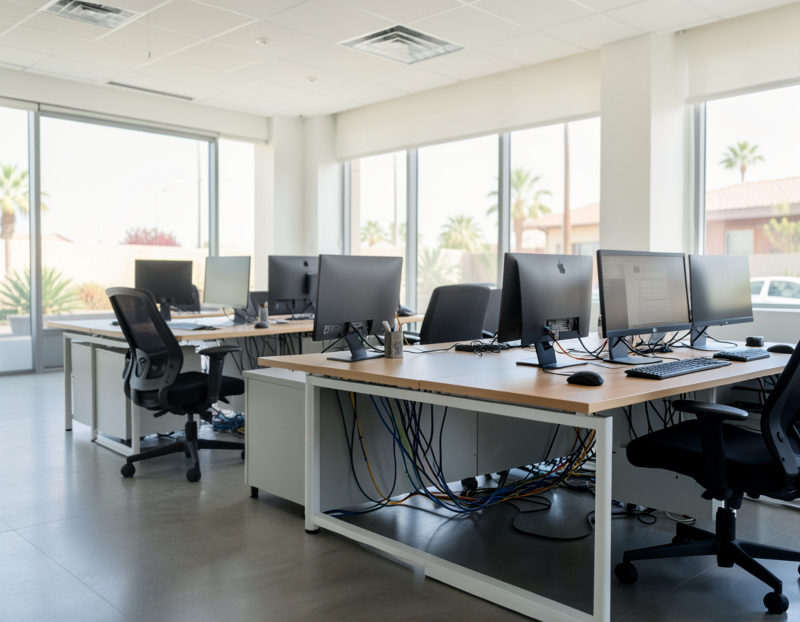
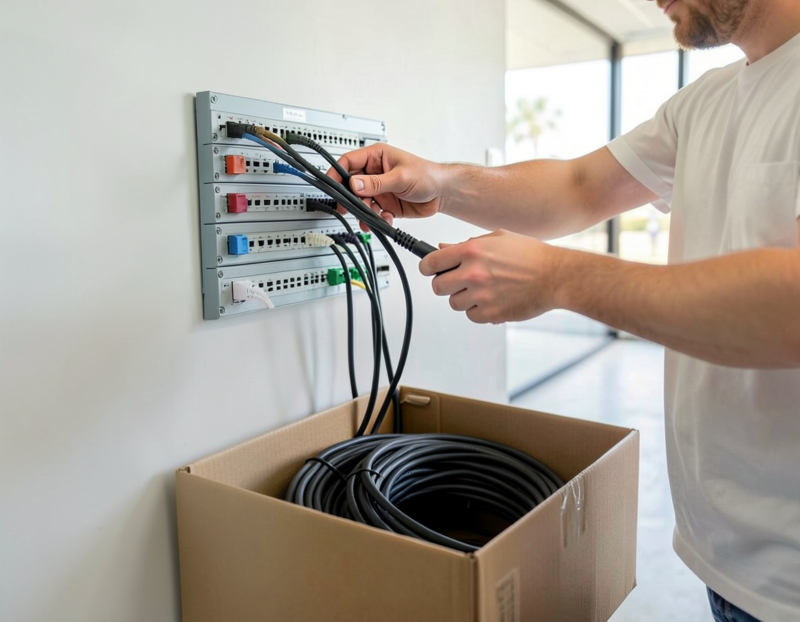
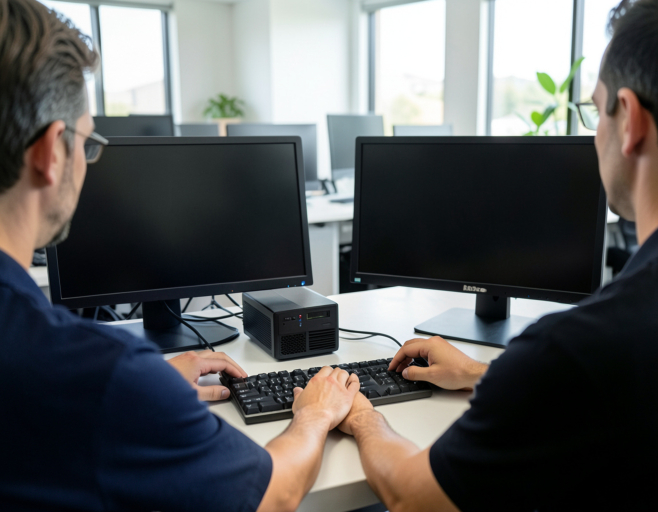
Most small offices do not replace computers on a schedule. They replace them when they break, which means purchases arrive at random, the fleet ends up as a mix of several generations, and the worst failures land in the busiest week. An IT hardware refresh done on a cycle turns that into planned work: a known budget each year, machines set up the same way, and old ones retired properly. Here is how to choose a cycle, what should move a machine up the list, and how to make each swap quick for the person at the desk.
How often to replace office computers
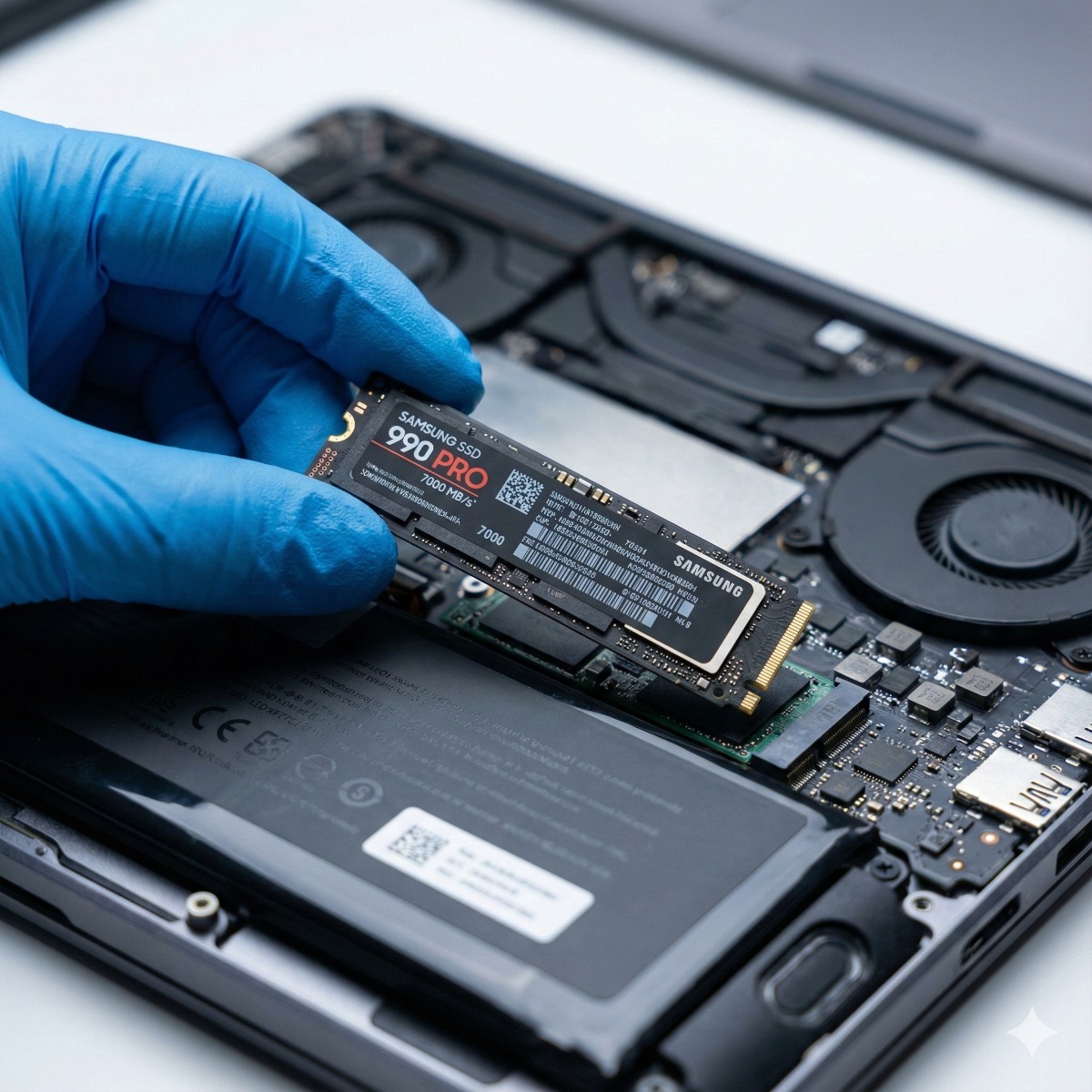
There is no single right number, but there is a sensible range. Laptops lead harder lives: they are carried, dropped and charged every day, and their batteries wear out. Desktops sit still, run cooler and can often take a new SSD or more memory. That is why laptops usually land at the short end of the three-to-five-year range people quote, and desktops at the long end or a little beyond.
Rather than picking a number in the abstract, anchor your business computer replacement cycle to dates you can look up for each machine:
- The warranty end date. After it, a failed board or screen becomes an unplanned expense and often a week without the machine.
- Operating system support. Windows 10 support ended on October 14, 2025, and our guide to Windows 10 end of support covers the options for machines still running it. Windows 11 moves on every year as well: Microsoft supports each annual version of Windows 11 Home and Pro for 24 months, and version 24H2 of those editions stops receiving updates in October 2026.
- The accounting schedule. For tax depreciation, the IRS treats computers and peripheral equipment as five-year property. That is an accounting life, not a promise about how long a laptop lasts, and faster write-off options may apply, so ask your accountant how a refresh will show up in the books.
Signs a computer should be replaced early
- It cannot run a supported version of Windows or macOS.
- The battery no longer lasts through a meeting. On Windows, running powercfg /batteryreport creates a report that compares the battery's design capacity with its current full charge capacity.
- Fixing it would eat up much of what a new machine costs.
- The next version of your main business software needs more than the machine has.
- Someone waits on it several times a day.
The reverse also holds. A desktop with a supported processor, TPM 2.0 and a solid-state drive may have years left in it, and a memory or SSD upgrade can be the cheaper move.
All at once or staggered?
An all-at-once PC refresh gives you a uniform fleet, one configuration to maintain and one project to manage. The catch is a large bill in a single year, and every machine ageing in step, so the same crunch comes back a few years later.
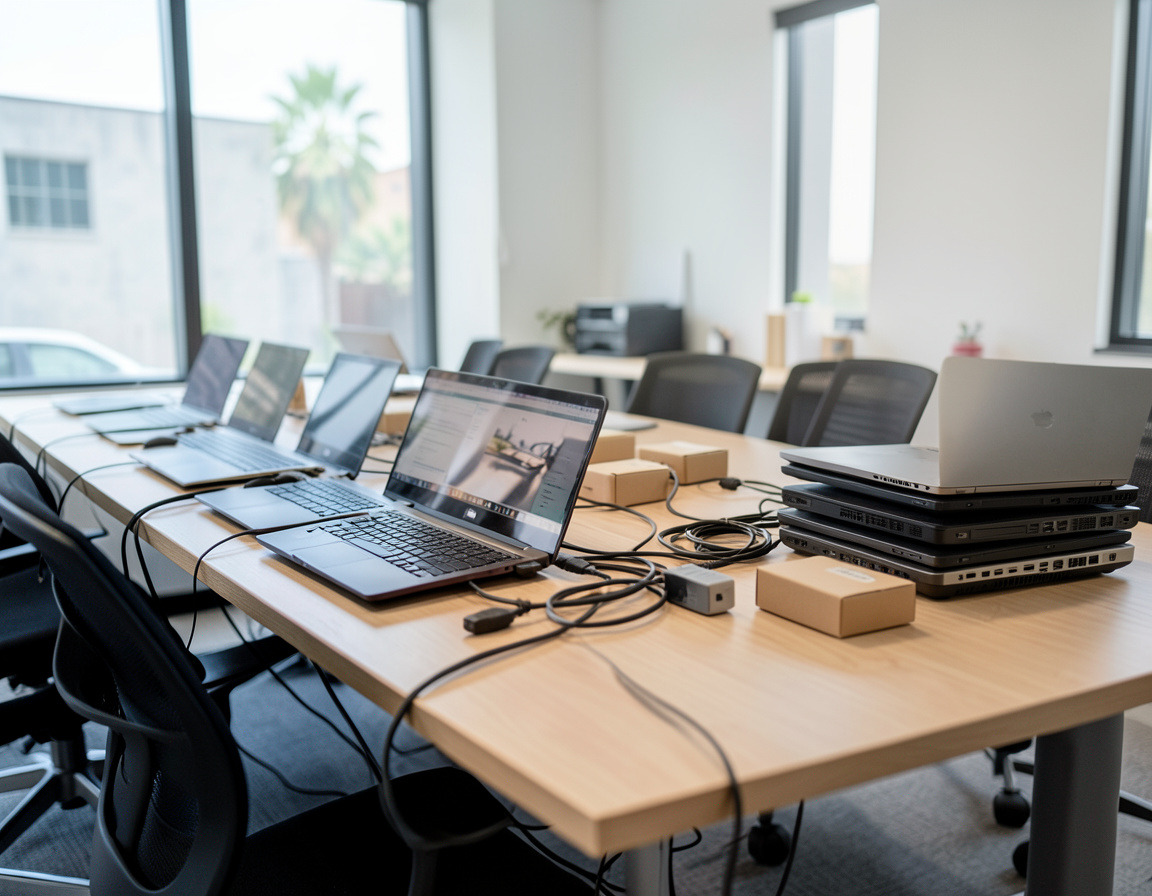
A staggered hardware refresh cycle replaces a fixed share of the fleet every year: on a four-year cycle, roughly a quarter of the machines. Spending stays steady, each wave is small enough to run without disrupting the office, and any problem with a new model shows up on a few desks rather than on all of them. Many offices combine the two approaches, replacing in waves with the oldest or most critical machines first, and keeping every wave on the same standard configuration.
Either way, keep one list with the user, model, serial number, purchase date, warranty end, operating system version and planned replacement year for every machine. That list is your refresh plan.
Setting up the new machines: laptop imaging or automated enrollment
Traditional imaging
Laptop imaging services build a reference installation with your applications and settings, capture it and copy it onto each new machine. The approach needs little cloud infrastructure and gives identical results. The cost is upkeep: an image needs drivers for every hardware model and falls behind with every monthly update. Licensing matters too. Microsoft's reimaging rights let volume licensing customers reimage computers that came with an OEM license using volume licensing media, but only when it is the same product, version and edition, with the same components and language.
Automated enrollment
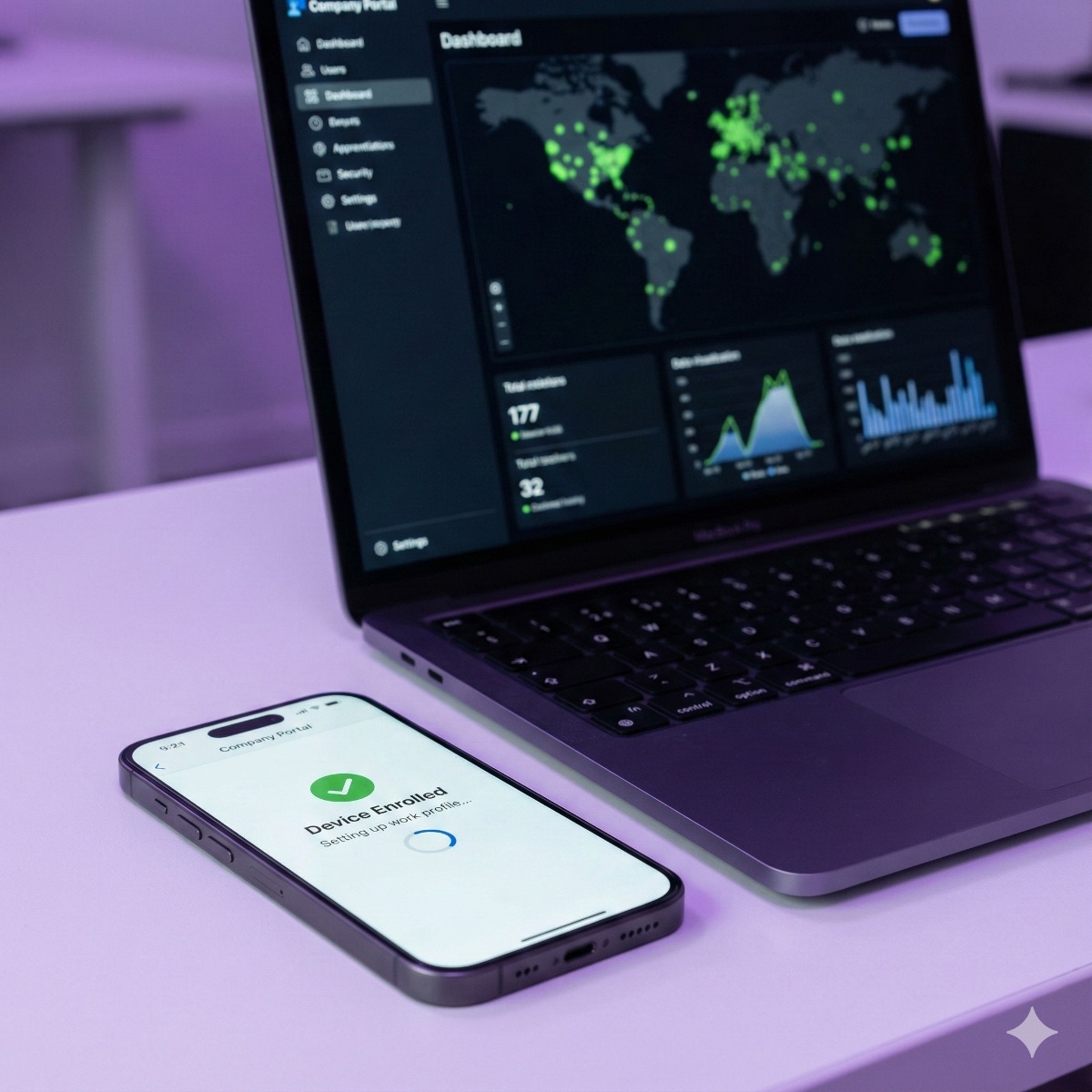
Microsoft describes Windows Autopilot as transforming the Windows installation the manufacturer shipped into a business-ready state instead of reimaging it: at first sign-in the computer pulls its settings, policies and apps from your management service. Apple's automated device enrollment works in a similar way for Macs. Both need suitable licensing, devices registered with the service, often by the reseller at purchase, and a management platform such as Intune or Jamf, which our device management service covers.
What a new computer setup service should cover
- Firmware and operating system updates installed before the machine reaches the desk.
- Disk encryption turned on, with the recovery key stored where IT can find it.
- Standard apps, printers, security software and backup in place.
- Everyday accounts without administrator rights.
- An asset tag, and the serial number added to the fleet list.
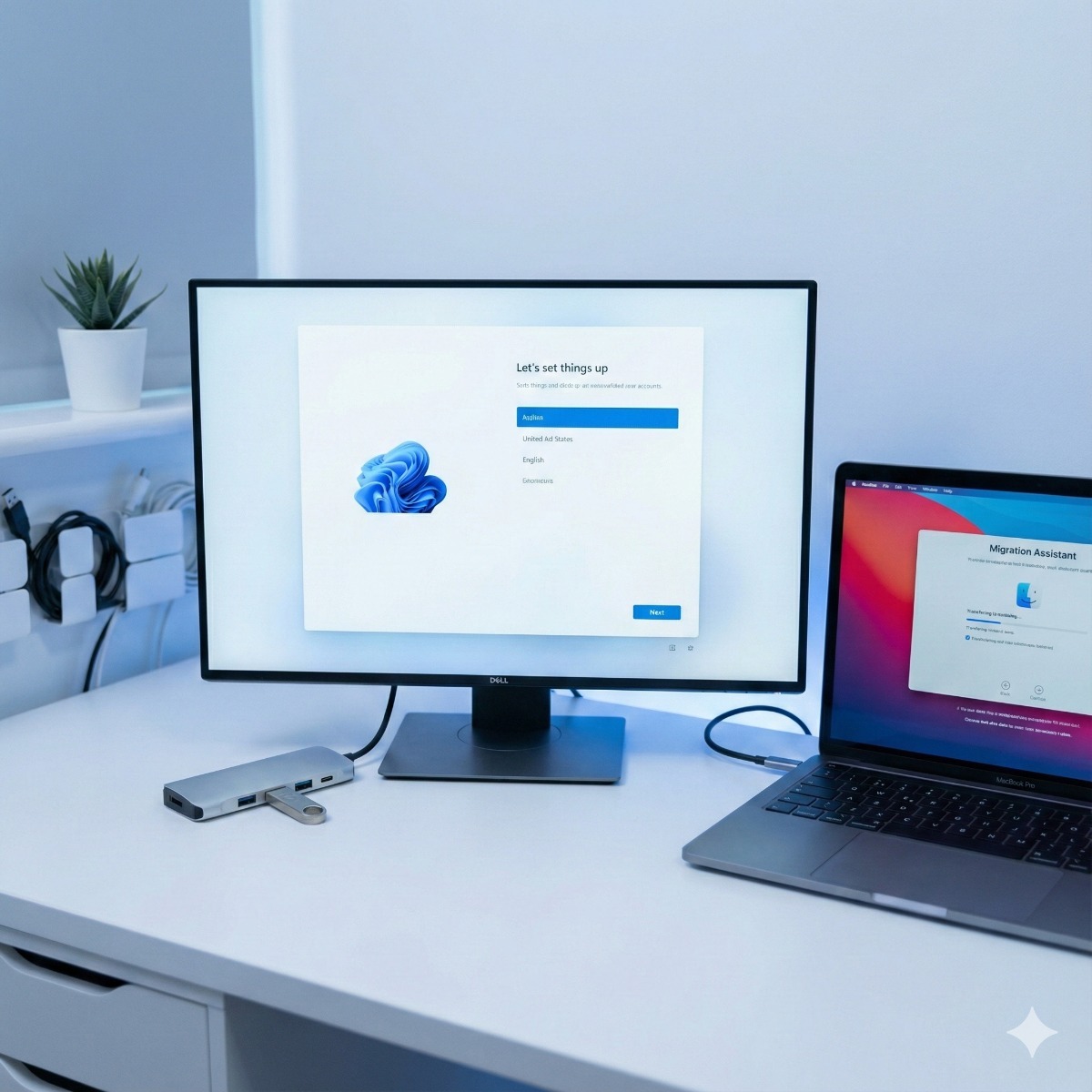
Data migration to a new computer without losing a day
- Put files where they follow the user. OneDrive's Known Folder Move redirects Desktop, Documents and Pictures to OneDrive, so they appear on the new machine at sign-in. Microsoft recommends it for larger organizations, smaller ones can use it too, and it turns most of a migration into a sign-in.
- Collect what does not sync. Local email archives such as PST files, email signatures, browser bookmarks, document templates, scanner profiles and license files for desktop software.
- Let the user test before the old machine leaves. Ten minutes running their own daily tasks catches the missing printer or plug-in while the old computer is still within reach.
- Keep the old machine intact for a short grace period, powered off and labeled, before it is wiped.
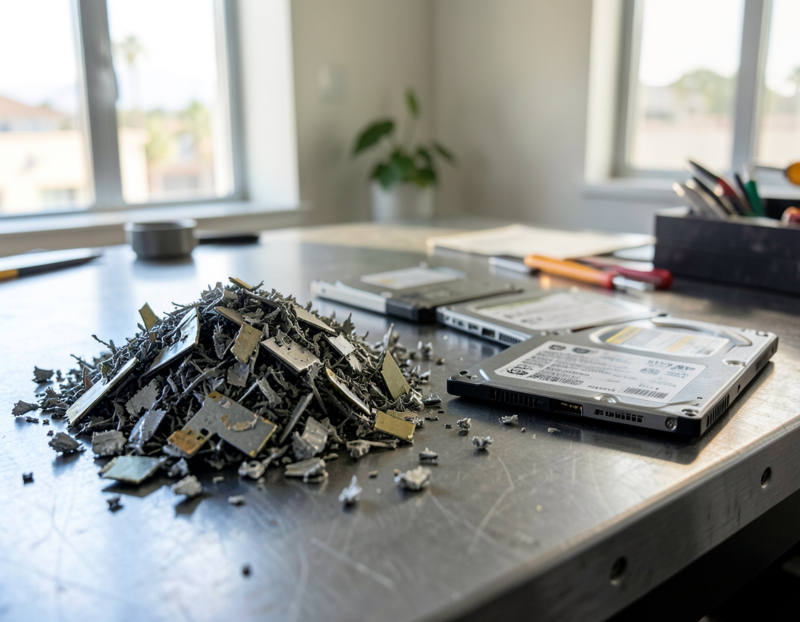
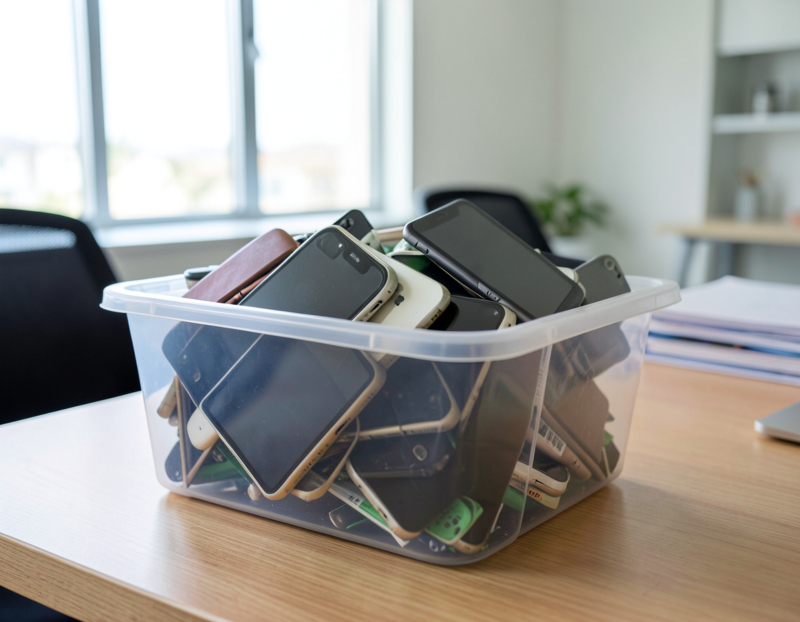
- Retire it properly. Release it from management, sanitize the storage, then resell or recycle it. Our guide to selling or recycling used business laptops walks through that last step.
Frequently asked questions
What is a hardware refresh cycle?
A planned schedule for replacing computers and other IT hardware at a set age or condition, instead of waiting for failures. It usually comes with a yearly budget, a standard configuration and a list of the machines due in each wave.
Should a small business lease or buy its computers?
Buying keeps the machine and any resale value, and suits offices that use computers until the end of their useful life. Leasing spreads the cost and builds in a regular refresh, but the machines go back at the end of the term, usually with conditions on their state and on how the data is removed. Compare the total cost with your accountant.
Do new business laptops need to be reimaged?
Not always. With automated enrollment the manufacturer's installation is configured from the cloud, and a custom image is only needed where special software or an offline setup requires it.
Is it worth upgrading an old office PC instead of replacing it?
Sometimes. If the processor is on Microsoft's supported list for Windows 11 and the case takes standard parts, an SSD and more memory can extend its life. If it cannot run a supported operating system, an upgrade only postpones the replacement.
Planning a refresh for a small office in the Long Beach or South Bay area? Our business computer replacement and PC refresh page describes how we approach the assessment, the setup and moving each person's data, Windows and macOS installation covers machines worth keeping, and retired units can go through IT asset disposition. Request a quote with a list of your computers and their approximate age, and we can discuss a cycle and a first wave.