


Business Computer Replacement & PC Refresh in Long Beach & LA
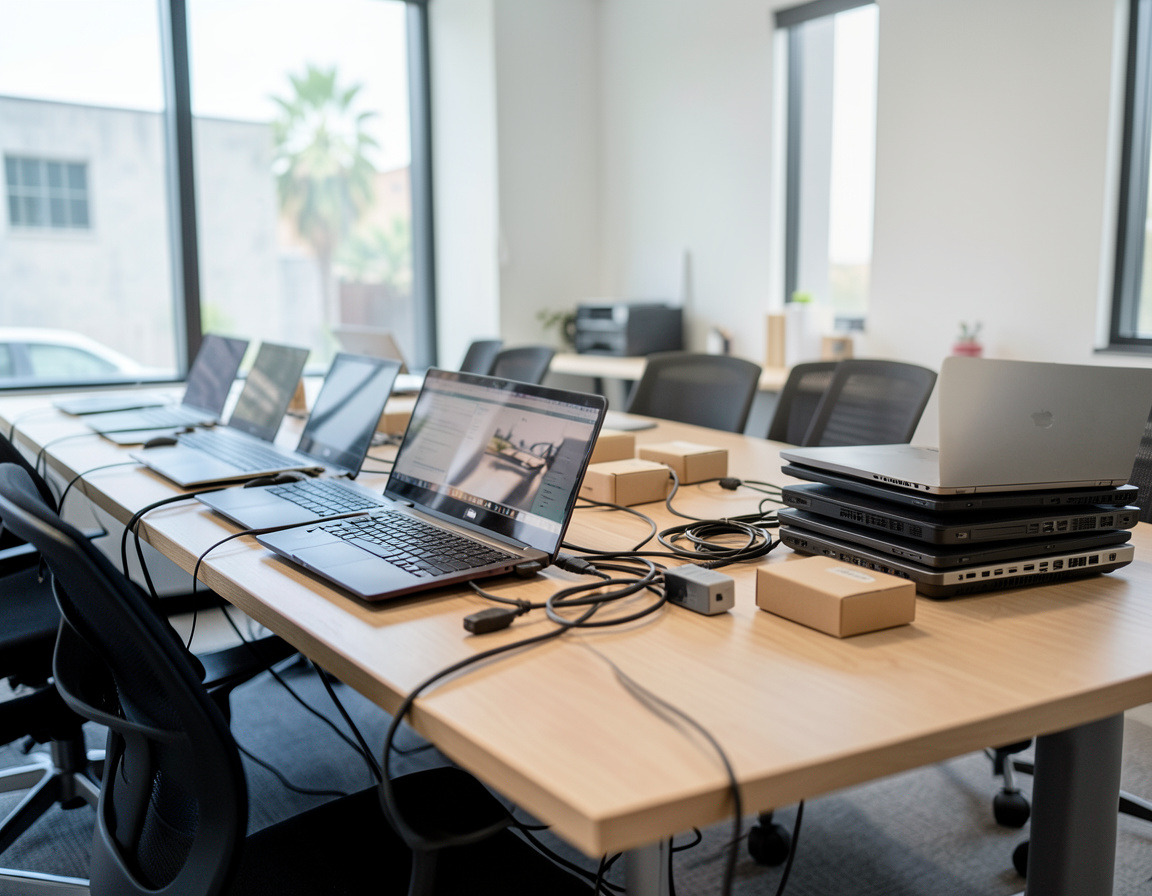
Replace office computers on a plan instead of one emergency at a time. We assess what you have, advise on what to buy, set up the new machines the same way, move everyone's data and retire the old units properly.
- Inventory with a replace, upgrade or keep recommendation
- Model and specification advice for your software and budget
- Standard setup, data migration and desk-by-desk deployment
- Old computers wiped, then resold or recycled
Windows 10 reached end of support on October 14, 2025, and many small offices still run computers that were bought together and are now slowing down together, with fading batteries and warranties long gone. Replacing them one breakdown at a time is the most expensive way to do it. We plan and carry out computer refreshes for small businesses in Long Beach and Los Angeles: which machines to replace, what to buy, how to set them up consistently, how to move each person's data, and what happens to the old ones.
What's included
- Assessment of every machine — age, specifications, warranty, drive and battery health and Windows 11 compatibility, with a clear replace, upgrade or keep list.
- Procurement advice — specifications and a model shortlist that fit your software, business-grade versus consumer lines, and warranty options, with help comparing vendor quotes.
- A standard configuration — the same apps, security settings, printers and policies on every machine, built from an image or through automated enrollment where your licensing supports it.
- Data migration — documents, desktop files, browser bookmarks, email profiles and application settings moved to the new computer.
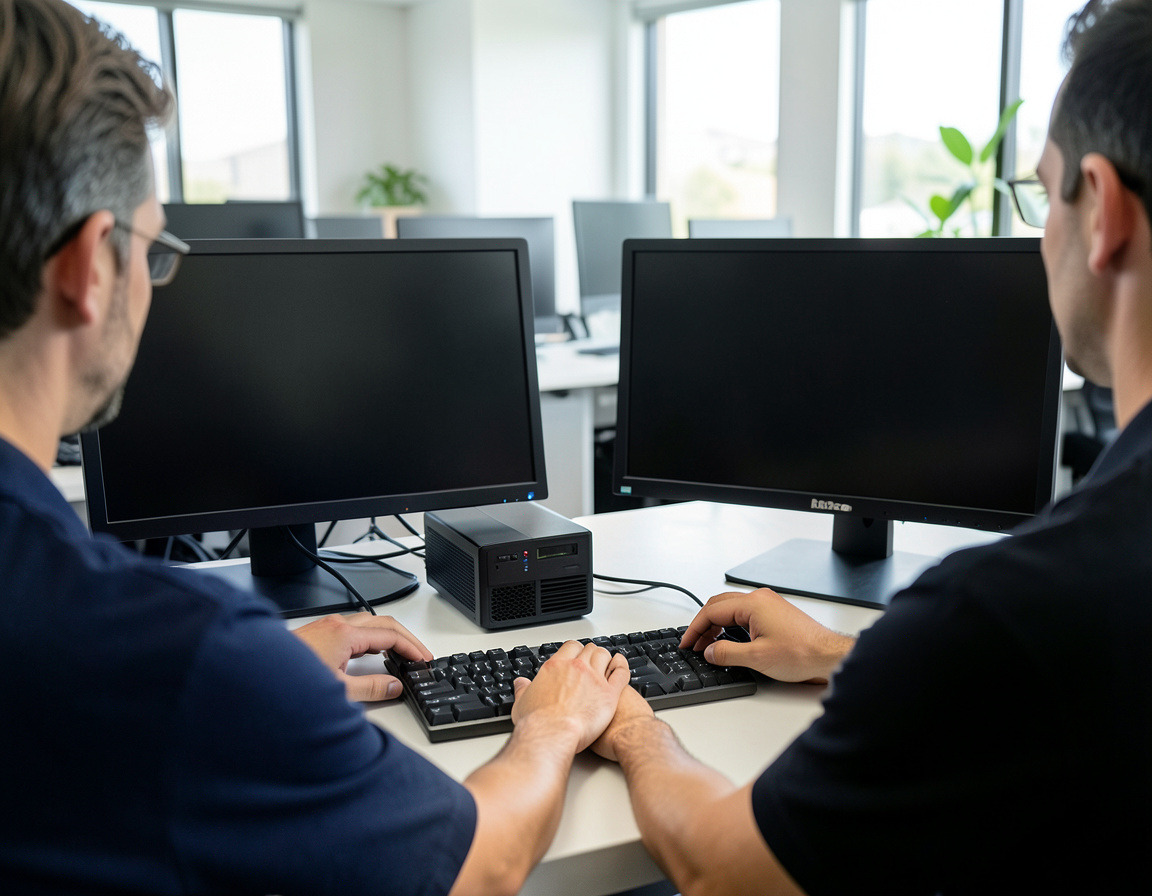
- Deployment at each desk — the new machine placed and connected, the user signed in, and the old one collected on the spot.
How it works
- Audit. We list every computer and what it runs, including the one piece of software that only works on one old PC.
- Plan and budget. Everything at once, or in waves by department or oldest-first, depending on cash flow and risk.
- Pilot. The standard configuration is built and tested with one or two users before it goes to everyone.
- Prepare. New machines are unboxed, updated, enrolled and configured before they reach a desk.
- Swap. Each person's data is moved, the new computer is placed, and the user checks their own apps and files before we leave.
- Retire. Old units are wiped or have their drives destroyed, then go to resale or recycling, and your asset list is updated.
Upgrade, replace or keep?
Not every old computer needs replacing. A business desktop with a decent processor may only need an SSD and more memory, while a laptop with a failing board and a worn battery rarely justifies repair. Computers that cannot run Windows 11, which requires TPM 2.0 and a supported processor, are the hard cases: Microsoft sells Extended Security Updates for Windows 10 to organizations for a limited period, which buys time but does not solve the problem.
Who it's for
Offices where most computers are the same age, businesses still running Windows 10 machines, practices whose imaging or practice-management software needs newer hardware, and companies onboarding several new hires at once who want every machine set up the same way.
Service area
Refresh projects are done on site in Long Beach, Signal Hill, Lakewood, Cerritos, San Pedro, Wilmington, Carson, Torrance and Hawthorne, and in Downtown LA. Preparation work can happen at our Long Beach base, so your office sees only the swap itself.
Why local deployment matters
A refresh ends at someone's desk: the second monitor that will not wake up, the scanner that needs a driver, the colleague who needs ten minutes of help finding their files. That part is done in person. And when a new laptop has a warranty problem three months later, a local team can deal with it without anyone packing a box.
Frequently asked questions
How often should you replace office computers?
A common rule of thumb is every three to five years for business laptops and somewhat longer for desktops, but age alone is not the test. Replace a computer when it cannot run a supported operating system, when a repair would cost a large share of a new machine, or when it slows people down every day.
What happens to Windows 10 computers now that support has ended?
They still work, but they no longer receive regular security updates. Organizations can buy Extended Security Updates for a limited period; otherwise the choice is an upgrade to Windows 11 where the hardware qualifies, or a replacement.
Will people lose their files and settings when we switch computers?
Not if the migration is planned. Documents, desktop files, bookmarks and email settings are copied, and business applications are installed, activated and signed in on the new machine. Where files already live in OneDrive, SharePoint or on a server, the switch is quicker.
Do we have to replace every computer at once?
No. Many offices replace in waves, oldest or most critical machines first. That spreads the cost over time and still keeps every computer on the same standard configuration.
Where should we buy the new computers?
From whichever vendor offers the right combination of price, availability and warranty. We provide a specification and model shortlist and can review quotes, and buying directly keeps the warranty registered to your company.
Tell us how many computers you have and roughly how old they are through the Request a quote form. The machines you retire can go through IT asset disposition and laptop buyback or computer recycling, and our Intune and Jamf device management service keeps the new fleet consistent.
| Manufacturer | Computer Service Breeze |
|---|