


Letting someone you cannot see take control of your computer sounds risky, and scammers have spent years making it riskier. Yet remote support is also how most everyday computer problems get fixed quickly, without a drive across Los Angeles traffic. So, is remote IT support safe? It is, when you start the session, you know who is on the other end, and you can watch and end it at any time. This guide explains what a legitimate session looks like, the warning signs of a tech support scam and the steps to take if a scammer already got in.
Is remote IT support safe? What a real session looks like
- You make the first contact. You call or email a support provider you chose, using a number or address from their own website or your contract, never one from a pop-up or an unexpected call.
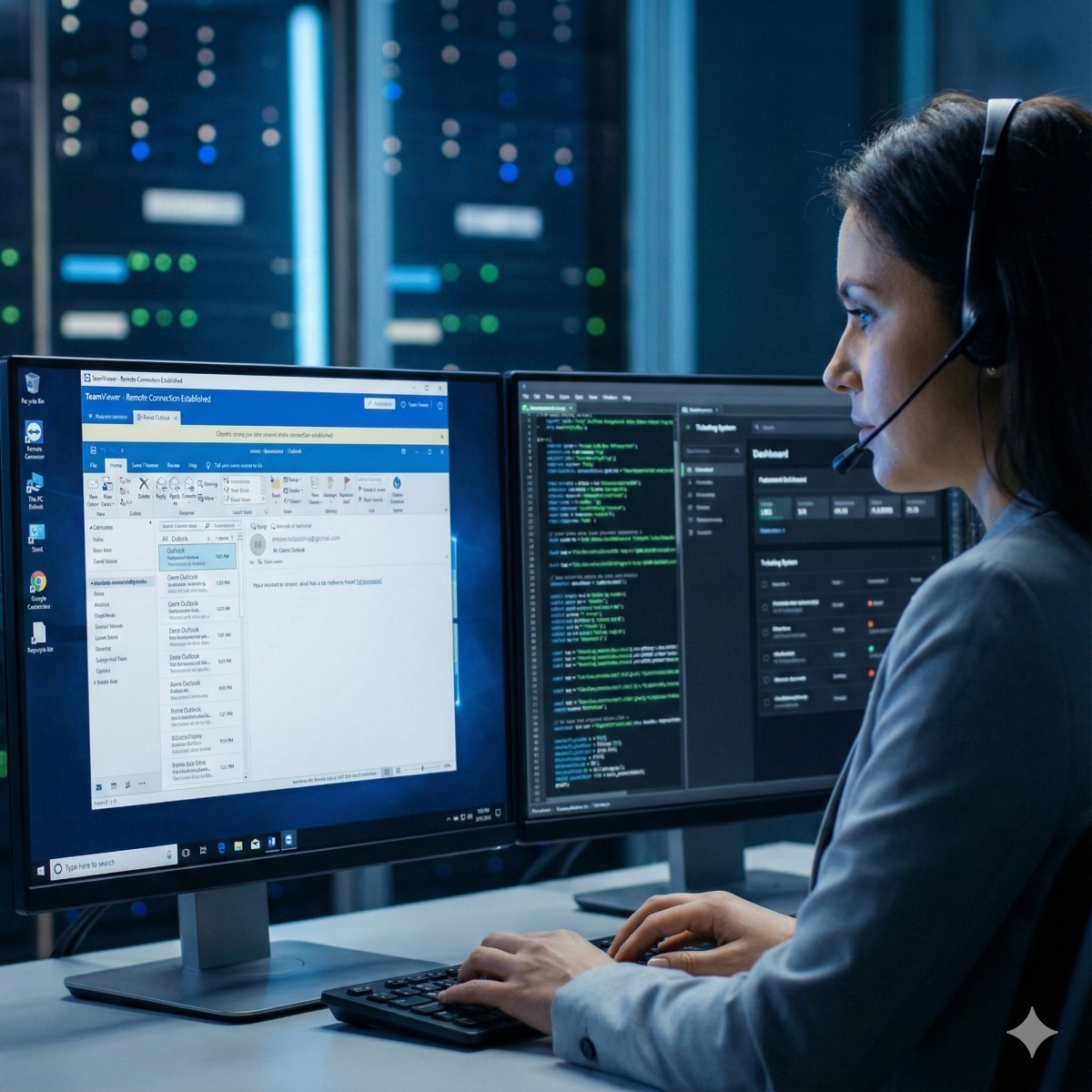
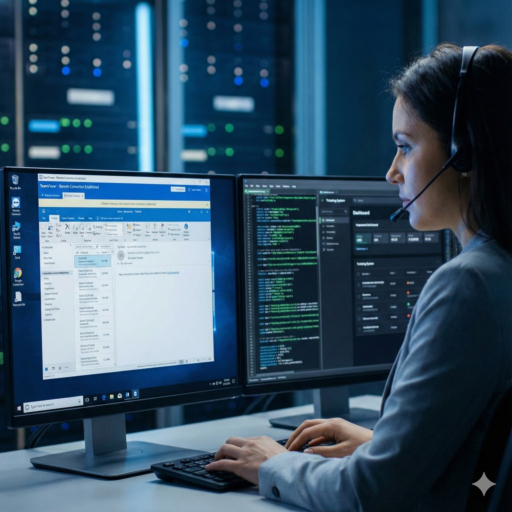
- You start the connection. You run a small support app and share a one-time session code. Tools such as TeamViewer, AnyDesk and Splashtop work this way; TeamViewer support sessions, for example, need an ID and a temporary password shown on your own screen.
- You see everything. The technician's actions happen on your screen, and closing the app ends the session immediately.
- Nothing stays behind unless agreed. Permanent, unattended access belongs only on business computers covered by a written agreement, with a named list of who may use it.
- No passwords over chat. A real technician asks you to type a password yourself when one is needed, never to read it out or send it by email.
Our remote desktop support sessions follow this pattern: you approve the connection, watch every step and can end the session at any time, and the one-time session password expires when the session ends.
Warning signs of a tech support scam
The Federal Trade Commission's advice is blunt: legitimate tech companies won't contact you by phone, email or text to tell you there is a problem with your computer, and real security warnings never ask you to call a phone number. Typical scams begin with:
- A fake virus pop-up that fills the browser, sometimes with a loud alarm, claiming the computer is infected or locked and showing a support number.
- An unexpected call from someone claiming to work for Microsoft, Apple, your internet provider or your bank's fraud team.
- A search ad for a well-known company's support line that leads to a look-alike site.
- A refund story: an email about a subscription renewal you never ordered, with a number to call to cancel it.
Then come the tells of a remote access scam: pressure to act right now, a request to install a remote tool, ordinary system logs presented as proof of infection, and payment demanded by gift card, wire transfer, cryptocurrency or a payment app. Some scams go further and ask you to log in to online banking during the session, or to move money to keep it safe. No legitimate support provider or government agency does that.
A fake virus pop-up is usually just a web page. Close the browser, from Task Manager if it will not close normally, and do not call the number. If it keeps coming back, contact a support provider you choose yourself.
If you gave a scammer remote access
- Disconnect the computer from the internet and end the session. Uninstall any remote tool you did not have before.
- Change important passwords from a different, clean device: email first, then banking and any account you used during or after the session. Turn on two-step verification.
- Call your bank or card company if you paid anything or logged in to financial accounts, and ask about reversing the charges.
- Have the computer checked for remaining malware, new user accounts and extra remote access tools before it goes back online.
- Report it. To report a tech support scam, use the FTC's ReportFraud.ftc.gov; internet crime can also be reported to the FBI's Internet Crime Complaint Center (IC3).
In a business, tell your IT contact straight away, even if it feels embarrassing. A scammer with access to one office computer may be able to reach shared drives, email and saved passwords.
Reducing the risk in a small office
Well-run IT help desk services make scams easier to spot, because staff know exactly how real support reaches them. A few habits help:
- One published way to contact IT, and a rule that IT never cold-calls anyone asking for access.
- Everyday user accounts without administrator rights, so installing a remote tool needs approval.
- A short list of the remote tools the business actually uses, so an unfamiliar one stands out.
- A two-minute briefing for new staff about fake pop-ups and "Microsoft" calls.
Frequently asked questions: is remote IT support safe? how to spot a tech support scam
Can I leave the desk while a remote session is running?
For a one-time session it is better to stay, watch and end the session yourself when the work is done. Work on a computer nobody is watching belongs only under an unattended-access arrangement agreed in writing for a business machine.
Is online tech support safe for business computers?
Yes, with a provider you chose, sessions you start and a record of each request. Online tech support can even be more transparent than handing a laptop over the counter, because you watch everything that happens.
What cannot be fixed remotely?
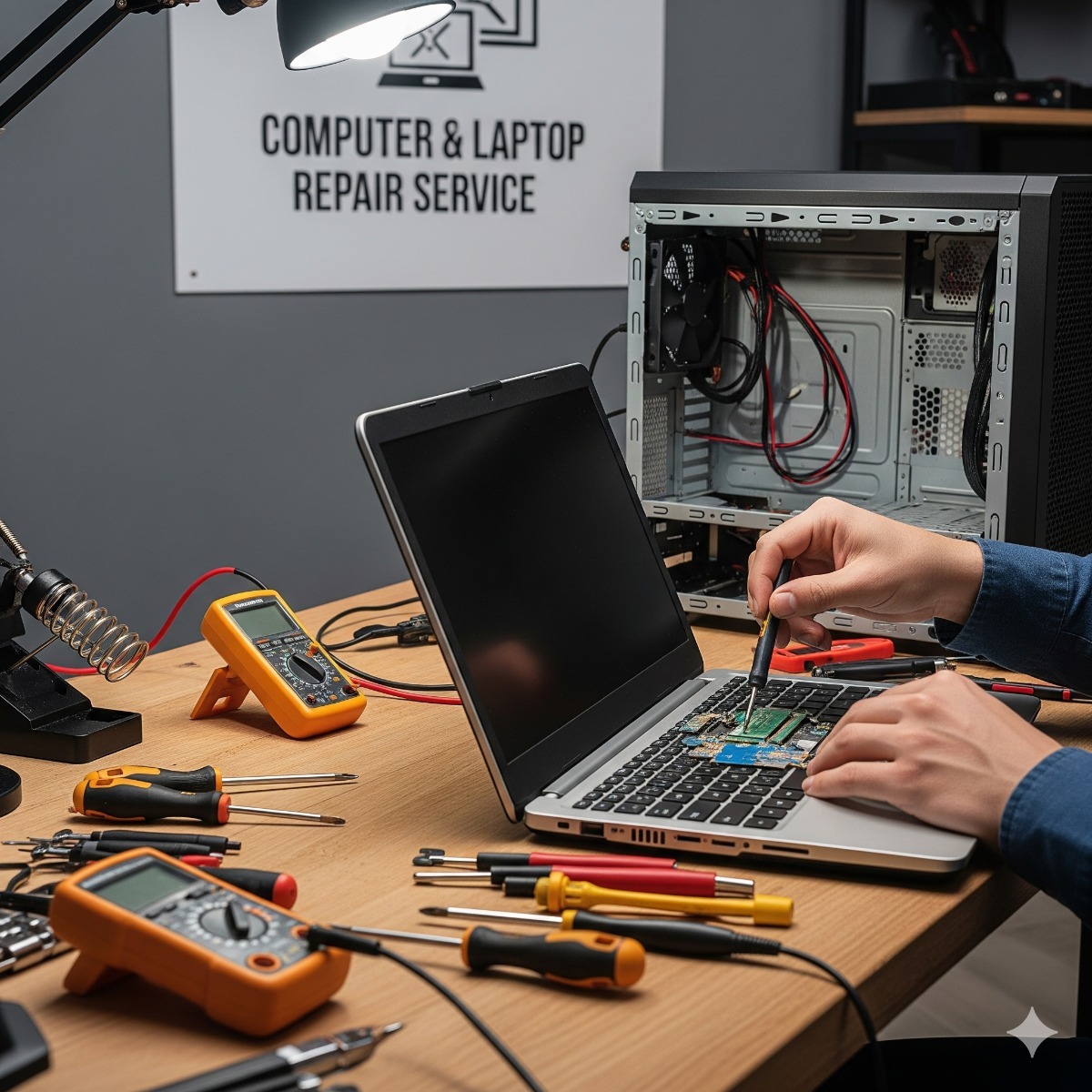
Anything that stops the computer from starting or reaching the internet, hardware faults, and infections that disable the remote tool. Those need hands-on repair.
Need help from someone you can verify? Our remote IT help desk and technical support service fixes Outlook, printer, software and malware problems in a session you approve, for homes and offices in Long Beach and Los Angeles. When remote help is not enough, our computer and laptop repair service takes over. Contact us using the details on our own website, never a number from a pop-up.